How a fly-in runs on the new website, from proposing it to handing the money to the Treasurer. Go one step at a time; each ends with a short checklist.
Same plan, one place. The website follows Bill Marvel's Fly-In Planning Guide step for step: the date first, the destination kept quiet until the rollout meeting, the flyer through the Fly-In Chair, checks payable to CPA and collected by the host, and the Roster / Accounting form to the Treasurer at the end. It does not ask you for anything new. Everything it asks for is something the guide already has you gather for your flyer and your Roster / Accounting form. The website keeps it all in one place, so you type it once.
Step 1 of 10
Propose your fly-in
This is the step the Planning Guide puts in November or December: tell the Fly-In Chair your date. Sign in, go to the Fly-In Activities page and press Create a Fly-In. Want a dry run first? Practice hosting first on the same page walks you through every step with a make-believe trip.
Only two boxes are required: Event Name and Start Date. Fill in whatever else you already know and leave the rest blank. You can add or change every detail later from your event page, so you never have to wait until you have it all.
Nothing on this form is new work. Each box is something the Planning Guide already asks for, mostly in the flyer checklist. The table below shows where each one comes from.
Two ways to start
The form opens with two tabs:
Enter Details (the usual way): type into the form yourself. Most proposals are made months before there is a flyer.
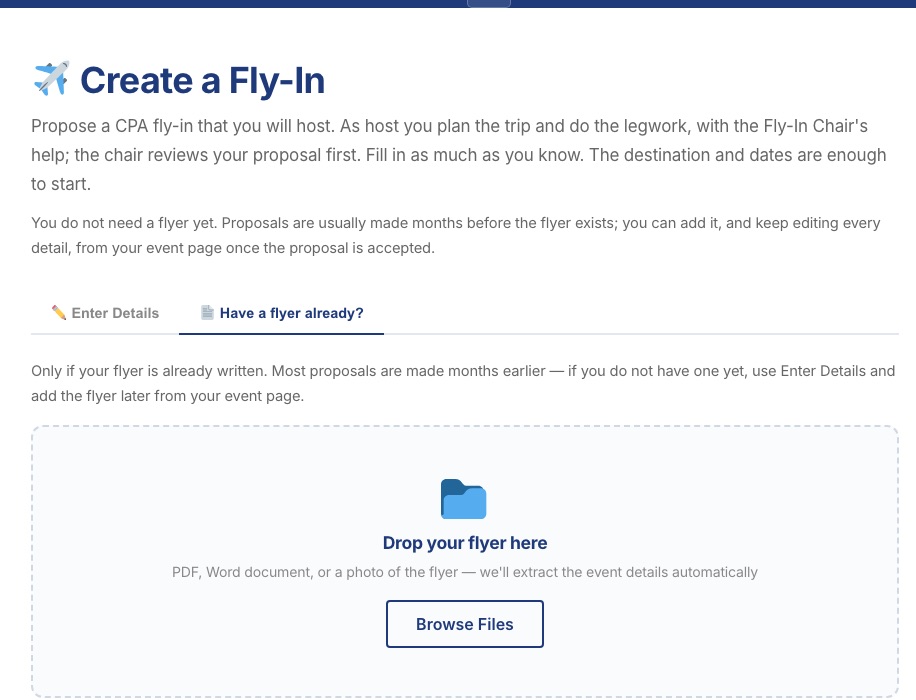
Have a flyer already? If your flyer is already written, drop it on the box (or press Browse Files). It can be a PDF, a Word document, or a photo of the flyer taken with your phone. The website reads it and fills in the form for you.
The "Have a flyer already?" tab. Drop the flyer on the box, or press Browse Files.
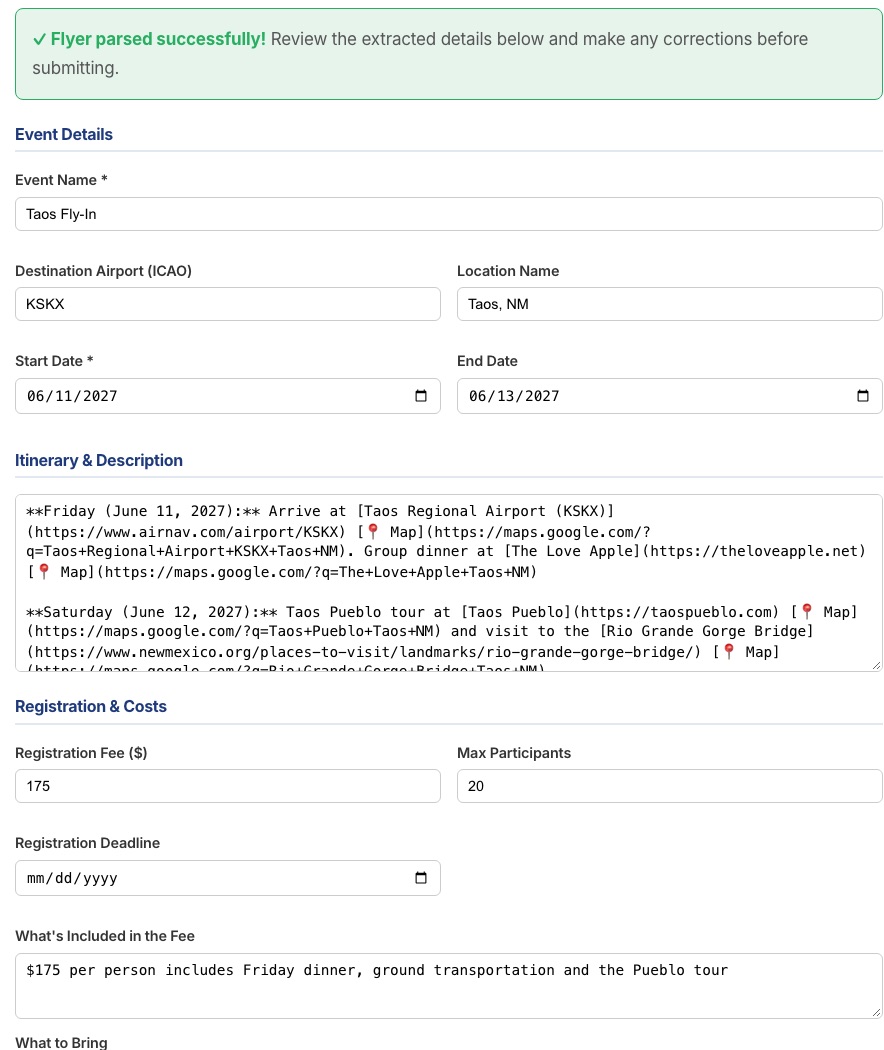
After a few seconds a green banner reads "Flyer parsed successfully!" and the form below it is filled in. Read every box before you submit. The website reads flyers well, but it can misread a date or a price, and nothing is checked for you. If a PDF flyer has photos in it, they are shown with tick boxes: untick any you do not want. The first photo you keep becomes the picture for your fly-in.
After the flyer is read: the details are filled in for you to check.
Every box on the form
Section and box
What to put in it
Where the Planning Guide asks for it
Event Details
Event Name (required)
What members will call it, for example "Taos Fly-In".
Your flyer's title
Destination Airport (ICAO)
The four-letter code, for example KSKX. The website looks it up and shows the airport's name and town in green, so you can see it is the right one.
Flyer: "arrival time and airport (ICAO code)"
Location Name
The town, for example "Taos, NM". Filled in from the airport if you leave it blank.
Your choice of destination
Start Date (required) and End Date
The first and last day. Leave End Date blank for a one-day trip.
November/December: "choose destination and date"
Itinerary & Description
Itinerary & Description
The plan day by day: arrival, meals, tours, departure. A rough sketch is fine to start.
Early research: "sketch out a basic daily schedule"; flyer: "daily schedule overview"
Registration & Costs
Registration Fee ($)
The fee per person.
Flyer: "registration cost"; fee guideline: group costs plus $10 a person
Max Participants
How many people the trip can take. 0 means no limit. Later sign-ups go on a waiting list.
The room block and tie-downs you already asked the hotel and FBO about
Registration Deadline
The last day to sign up.
Flyer: "last day to register"
What's Included in the Fee
What the fee pays for, and what is "pay as you go".
Flyer: "what it includes vs. pay as you go"
What to Bring
Water bottle, hiking boots, a jacket, and so on.
Flyer: "any special requirements"
Hotel Block
Hotel Name, Rate, Booking Deadline, Hotel Phone, Hotel Website
The hotel holding your room block, the group rate, the last day to book at that rate, and how to book.
Flyer: "hotel price and contact info" and "last day to book hotel room"
Event Photos
Upload Additional Photos
Up to 10 photos (JPG, PNG or WebP) of the destination.
Flyer: ".jpg photos"
Host Information
Host Name and Host Email
Filled in from your account. You cannot change them here.
Flyer: "host name and contact info"
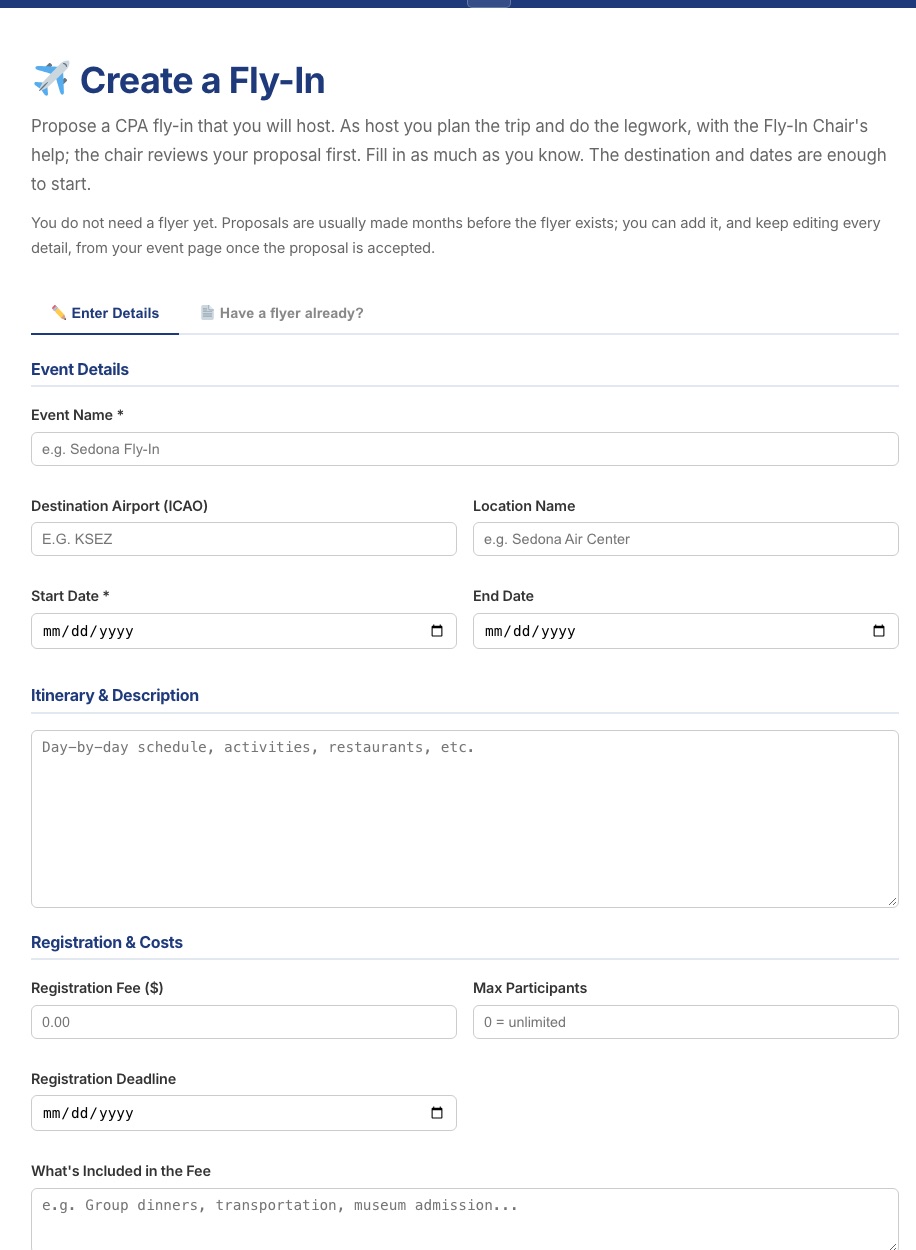
The top of the form, before anything is typed in.
Send it
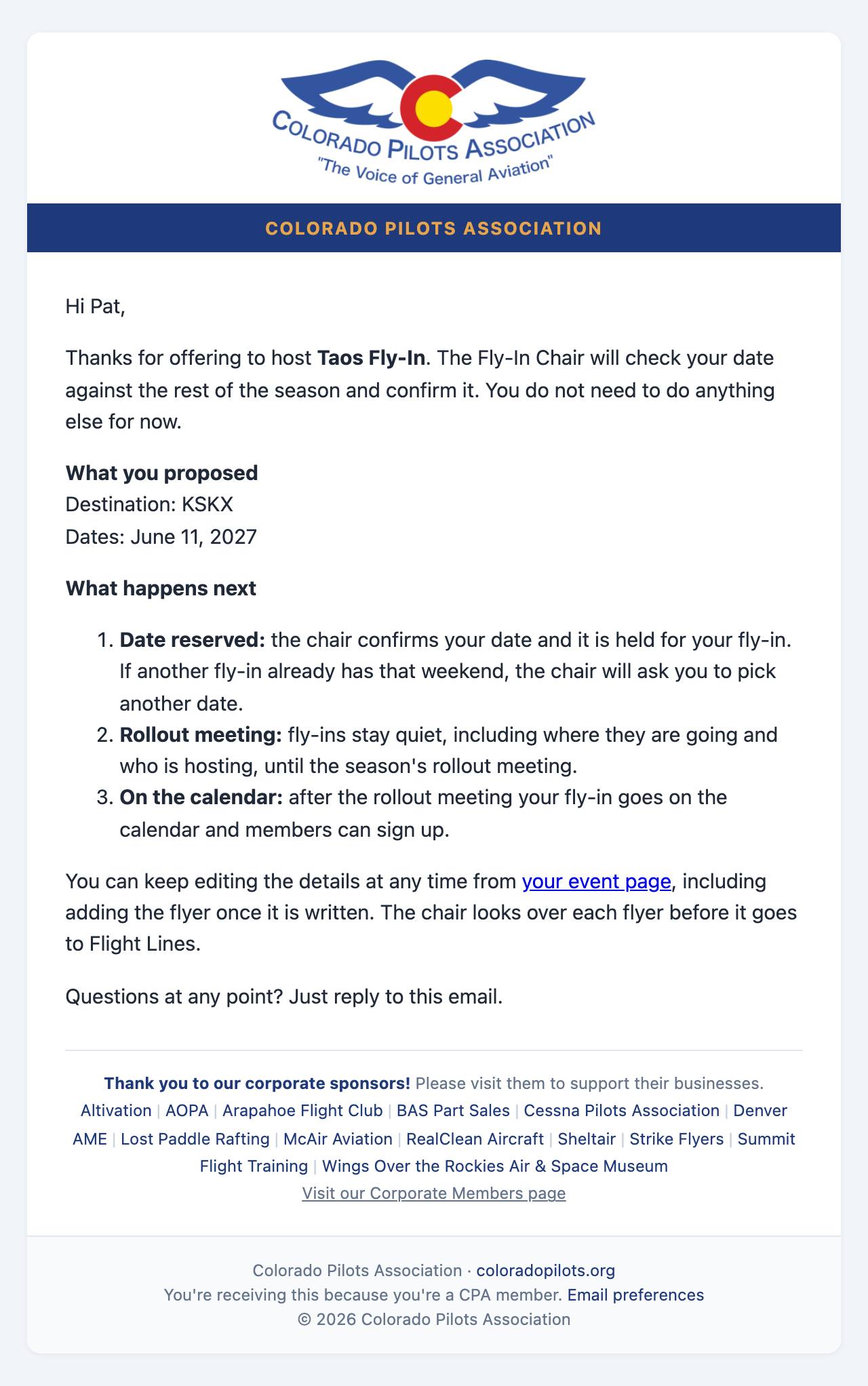
Press Submit for Chair Review at the bottom (or Cancel to leave without saving). You get an email headed "We have your fly-in proposal", and the Fly-In Chair gets a notice with your dates and your name. As the Planning Guide asks, that notice does not say where you are going: the destination stays hidden until the rollout meeting.
Checklist
Event name and start date enteredCHECK
Everything else you already know enteredCHECK
Read-through if a flyer filled the formAS NEEDED
Submitted for chair reviewCHECK
"We have your fly-in proposal" email receivedCHECK
Step 2 of 10
The Fly-In Chair reviews it
Nothing goes public until the Fly-In Chair has looked at it.
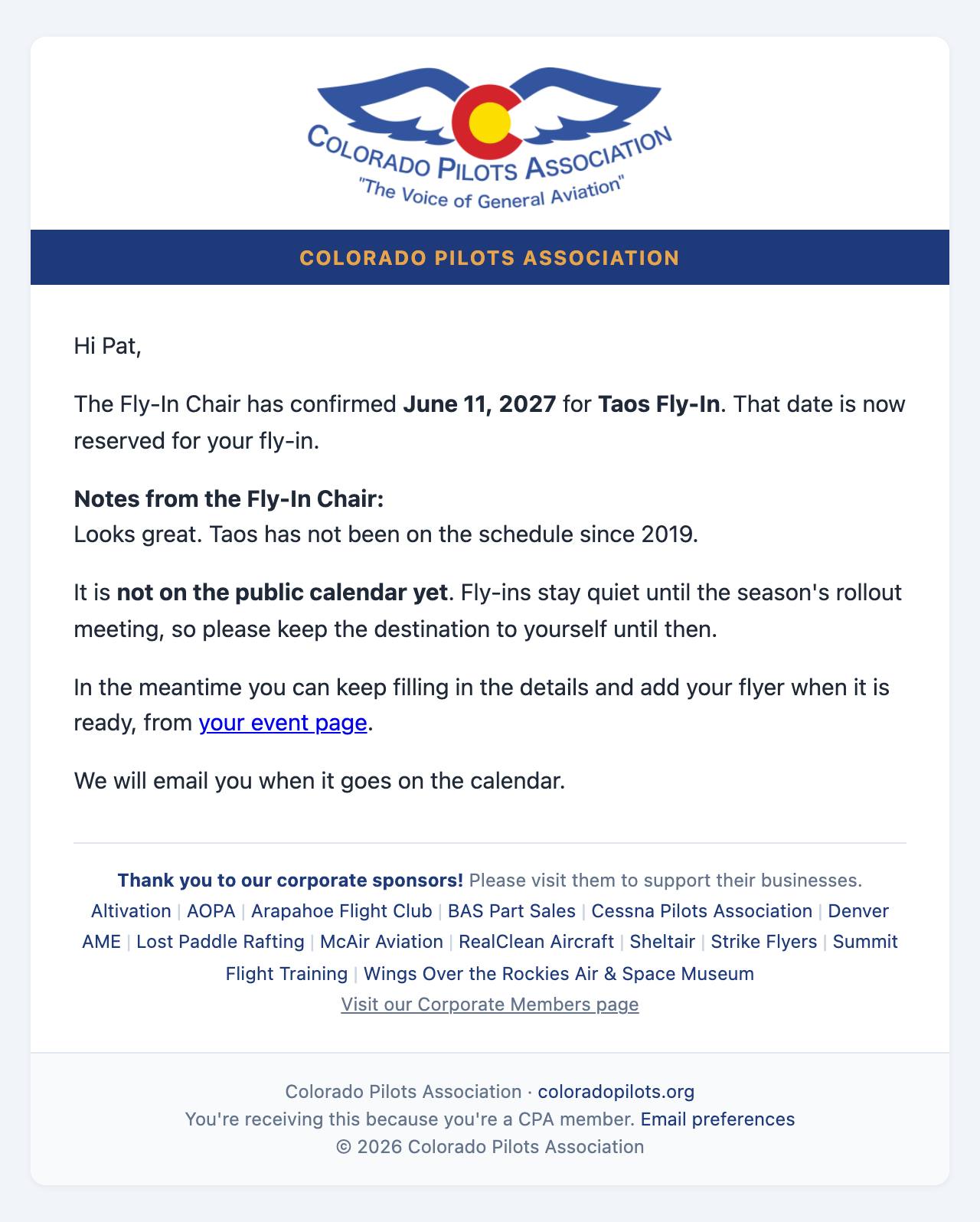
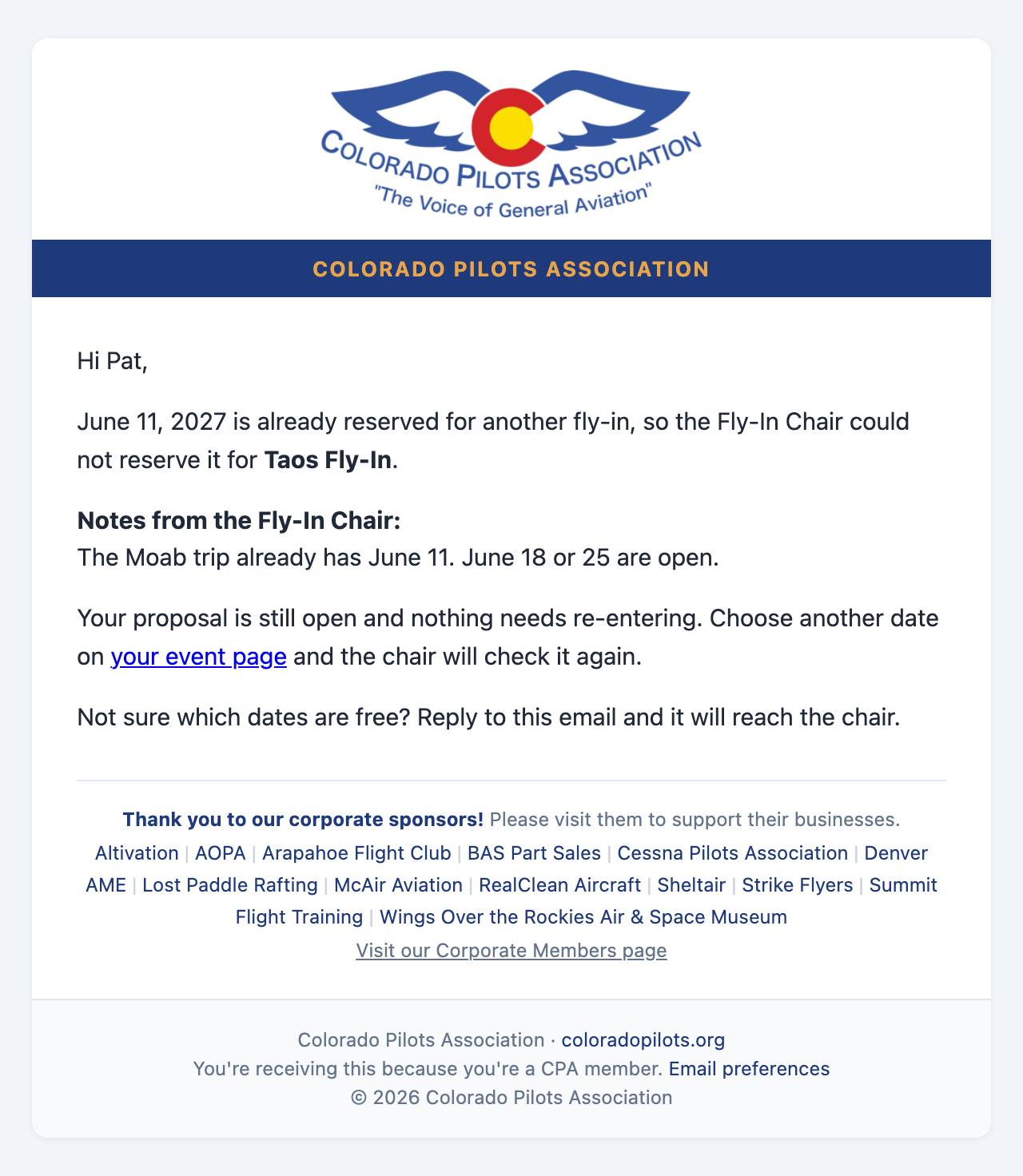
Your date: the chair confirms your date, or tells you about a date conflict so you can pick another. You get an email either way.
The season rollout: confirmed fly-ins are announced together at the rollout meeting, so destinations stay a surprise until then.
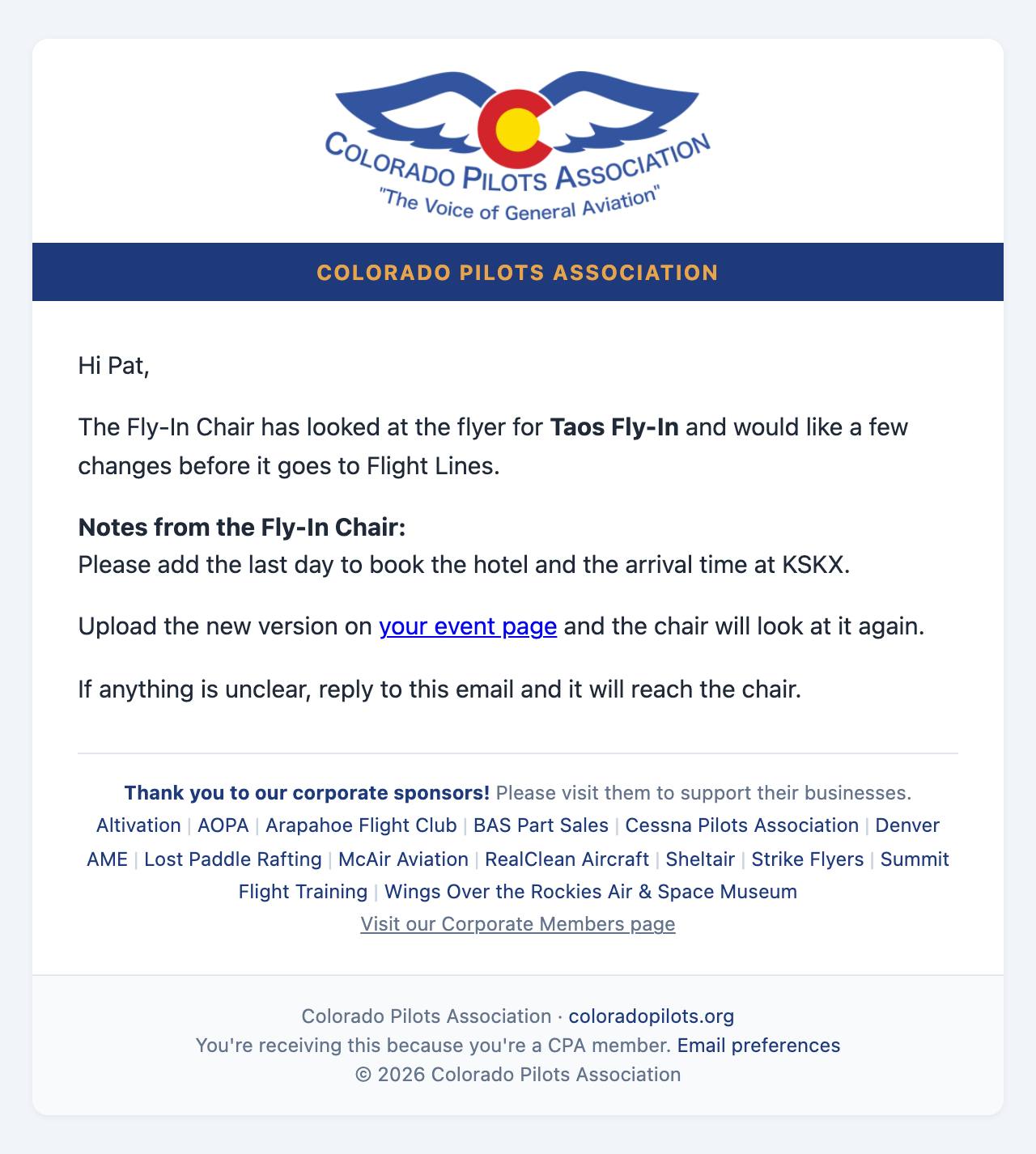
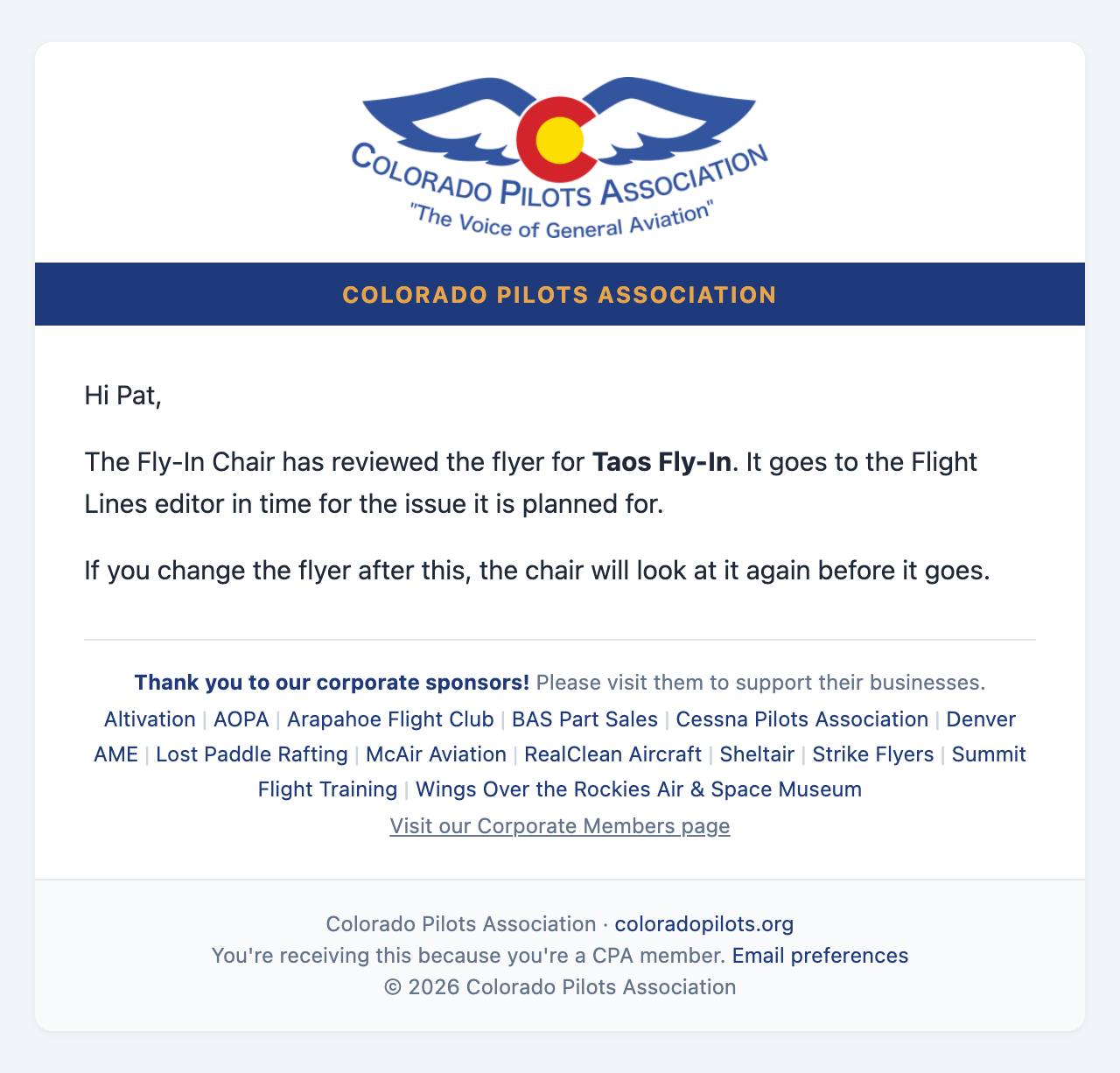
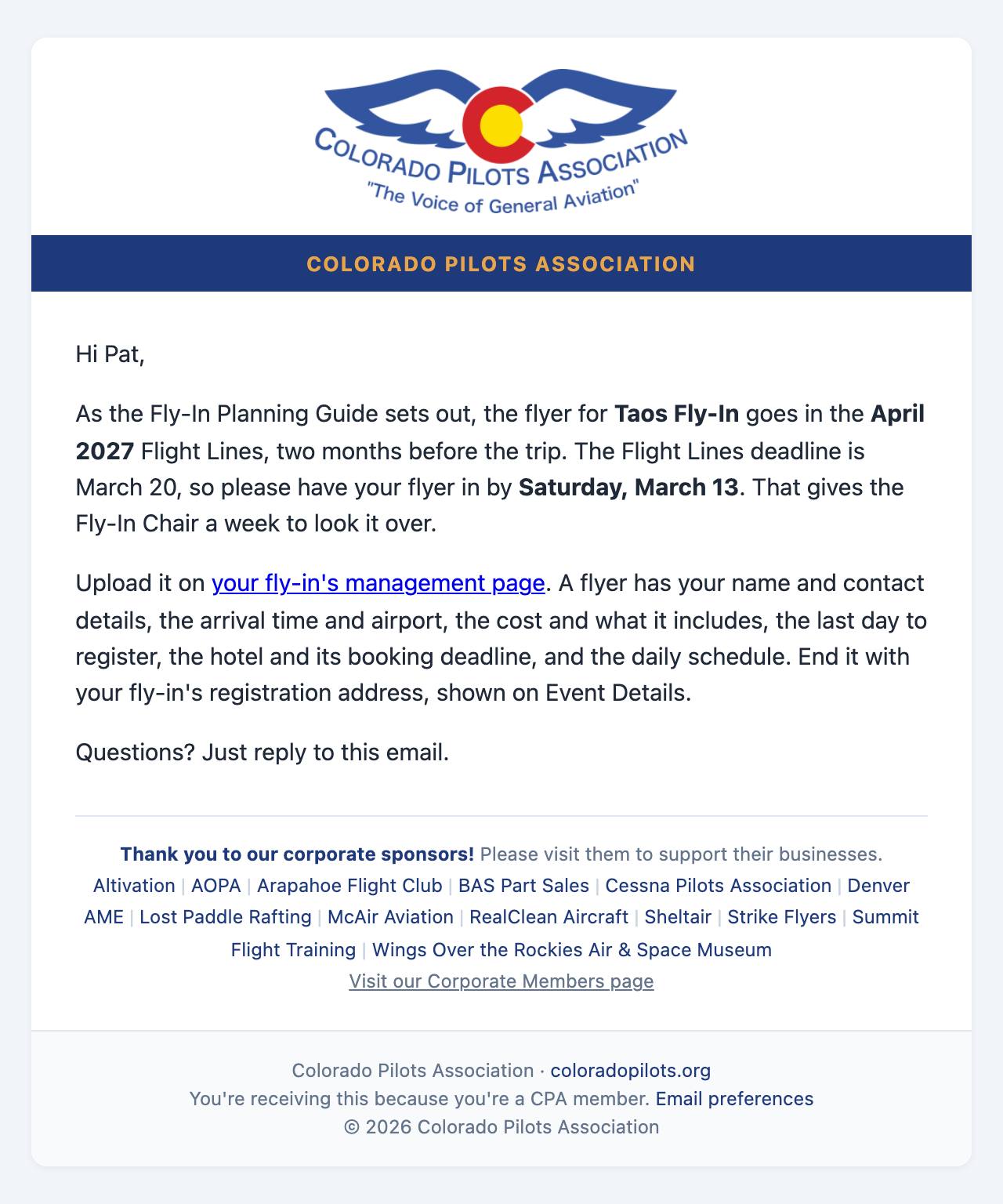
Your flyer: send it in from your event page. The chair proofreads every flyer and either approves it for Flight Lines or asks for changes. No flyer appears anywhere before it is approved. End your flyer with your fly-in's registration address, shown on Event Details (for example coloradopilots.org/fly/1234): members reading Flight Lines type it in and land on the registration form. Event Details shows when it is due: a week before the Flight Lines deadline of the 20th, so the chair can look it over. The site emails you a reminder three weeks before.
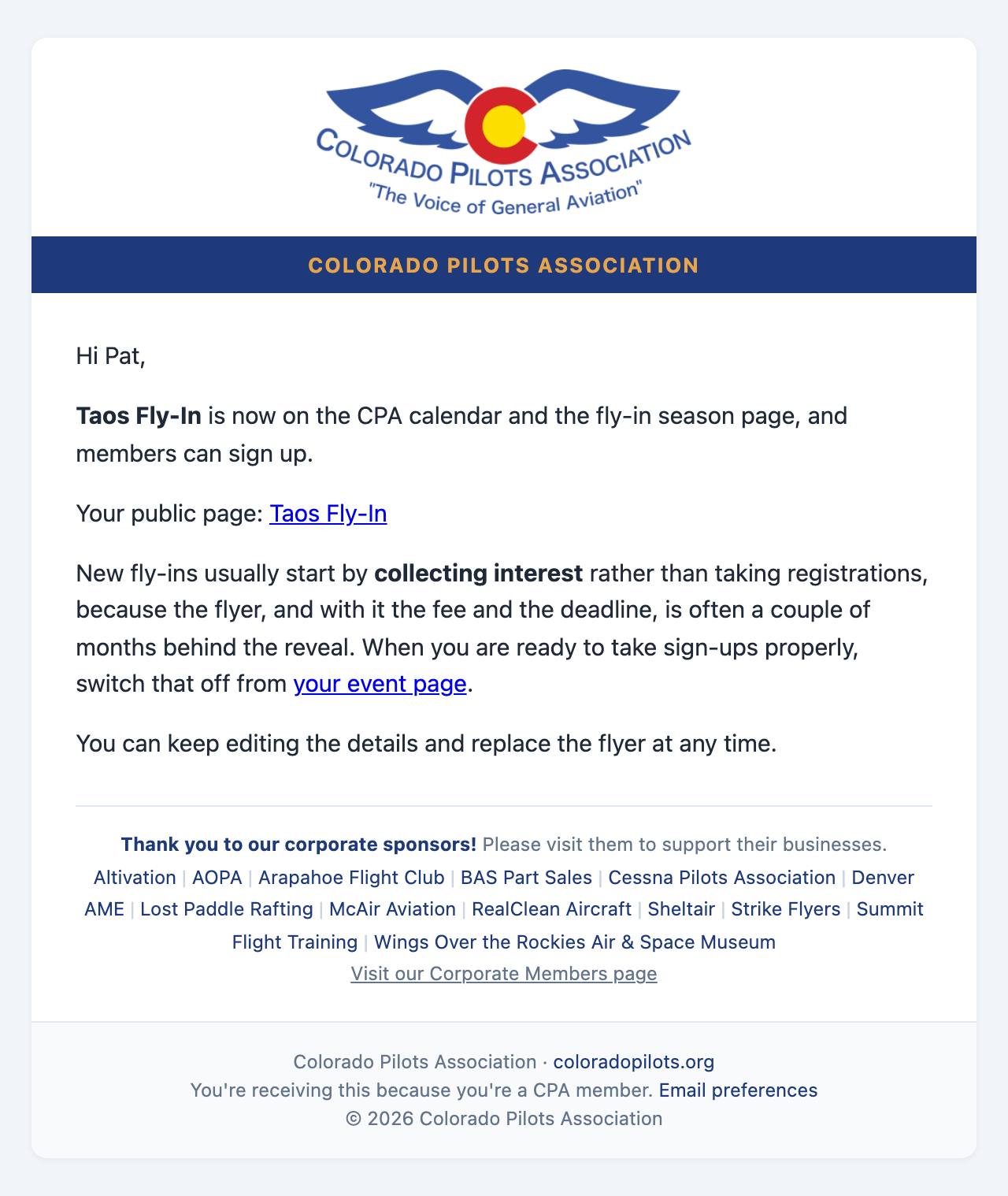
Going public: as the Planning Guide has it, your fly-in goes on the website and calendar right after the January rollout meeting, and registration opens then. Sign-ups in the order received are your planning and priority list, and the waiting list moves people up automatically. Your flyer goes live with the Flight Lines issue that carries it, two months before the trip.
Cost to be announced: members can register before you know the final cost. Until you enter the fee, the sign-up form says the cost is to be announced. When you enter it on Event Details, everyone registered is emailed the cost, and anyone who would rather not go can drop out. Cards saved at sign-up are charged the final cost after the trip.
Checklist
Date confirmed by the chairCHECK
Flyer approved for Flight LinesCHECK
Fee entered on Event DetailsBY THE FLYER
Step 3 of 10
Your fly-in's management page
Everything you do as host happens on one page, reached from your fly-in's event page. Its tabs follow the trip in order:
The tabs across the top of the management page.
Event Details: change anything about the trip, and check where members mail their checks: your address on file, unless you choose a different one.
Roster: who signed up, and later, charging the cards.
Ground Transport and Group Email: rides and messages to everyone.
Activate Event and Check-In: on the day.
Expenses, Summary and Wrap Up: the money, after the trip.
The page remembers which tab you were on, so saving something keeps you where you were.
Checklist
Details reviewed on Event DetailsCHECK
Address for checks confirmedCHECK
Step 4 of 10
Sign-ups and payments
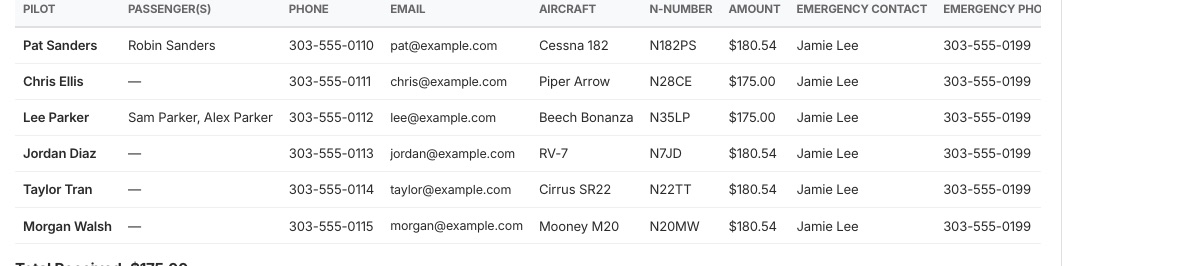
The Roster tab lists everyone who has signed up and updates as they do: passengers, phone, aircraft and N-number, what they owe, emergency contact, how they are paying, ride needs and dietary notes. Export CSV gives you the same list as a spreadsheet. Anyone on their first CPA fly-in is marked First fly-in, so you can introduce them early, as the Planning Guide asks.
The roster.
When the trip fills up
Once your place limit is reached, later sign-ups go on a waiting list in the order they signed up. If someone cancels, the next person moves up automatically and gets an email.
How members pay
By card: the member types their card on Stripe's own secure page, never on CPA's website. Stripe keeps the card; the website and the host never see the number. Nothing is charged at sign-up; you charge the cards after the trip (step 6).
Card processing fee: 2.9% plus 30 cents is added to a card payment, so CPA receives the full fee. Members see it before they choose. Paying by check or by bank transfer has no fee.
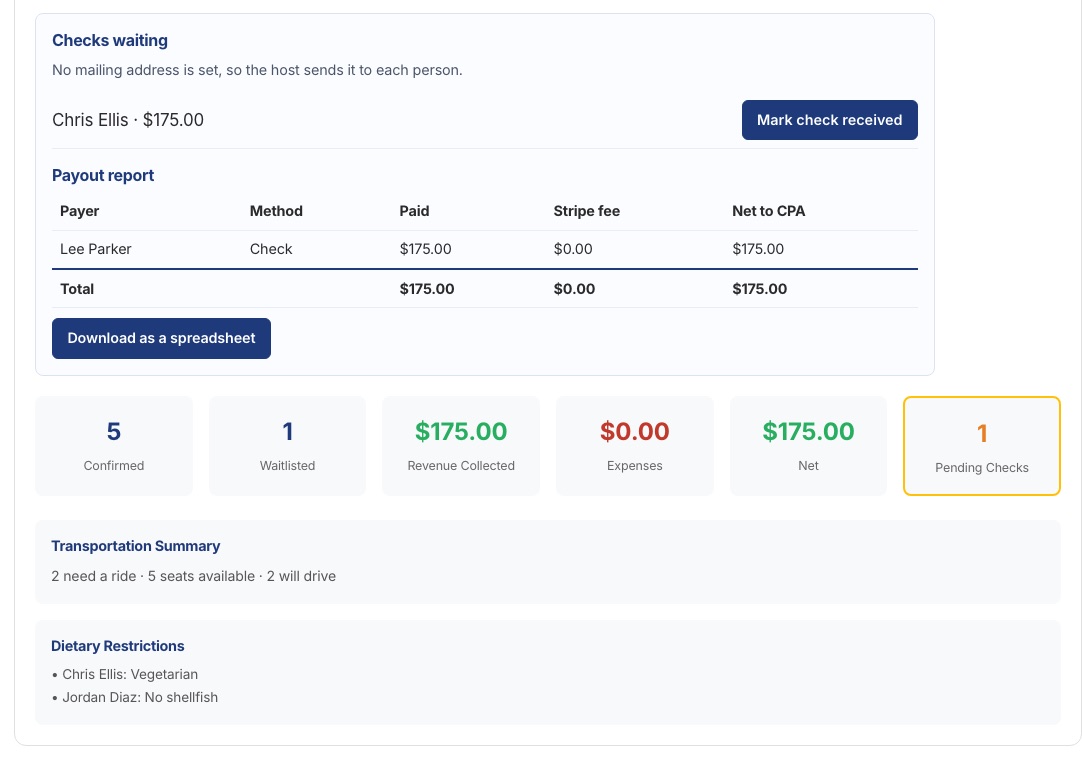
By check: always payable to Colorado Pilots Association and, as the Planning Guide sets out, mailed to you. Members who choose check are given your address in their confirmation email: the one on your membership record, or a different one you choose on Event Details. When one arrives, press Mark check received on the Summary tab and keep it with the others. You send them all to the Treasurer after the trip (step 8).
Checklist
Roster watched as sign-ups arriveONGOING
Each check marked receivedAS THEY ARRIVE
Step 5 of 10
Before the trip
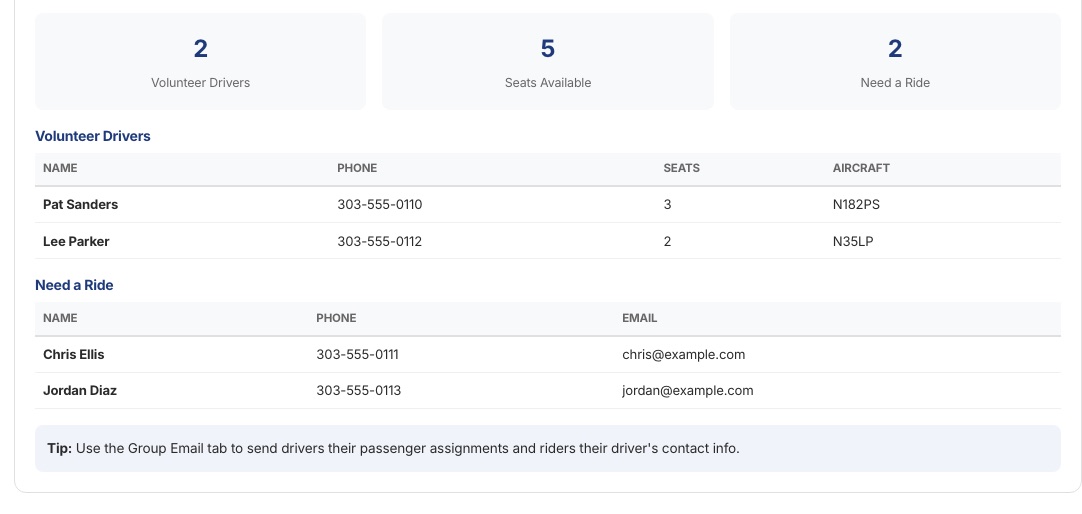
Ground Transport shows who is flying with spare seats and who needs a ride from the airport, with their phone numbers, so you can match them up.
Group Email sends a message to everyone signed up: the hotel details, the plan for the day, a weather call.
Ground Transport: drivers with spare seats, and who needs a ride.
Checklist
Rides matchedCHECK
Final details emailed to the groupCHECK
Step 6 of 10
After the trip: charge the cards
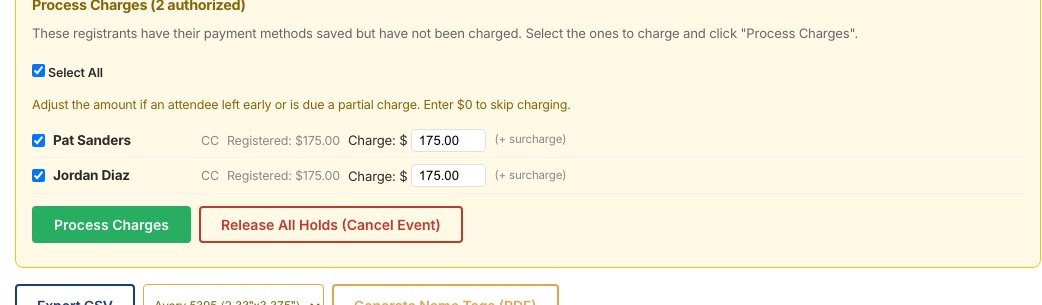
Once the final cost is known, go to the Roster tab and find Process Charges under the list. It shows everyone whose card is saved.
Untick anyone you should not charge, and change an amount if someone left early or owes a different figure. Enter $0 to skip someone.
Press Process Charges. Each member gets a "Payment Received" email.
The money goes from Stripe straight into CPA's bank account, which the Treasurer manages. It never passes through you.
If a member cancels after paying, the refund goes back to their card through Stripe automatically.
Process Charges, with the amount for each person.
Only the host, the Fly-In Chair and the Treasurer can press Process Charges.
Checklist
Amounts adjusted where neededCHECK
Cards chargedCHECK
All checks marked receivedCHECK
Step 7 of 10
Log your expenses and any refunds
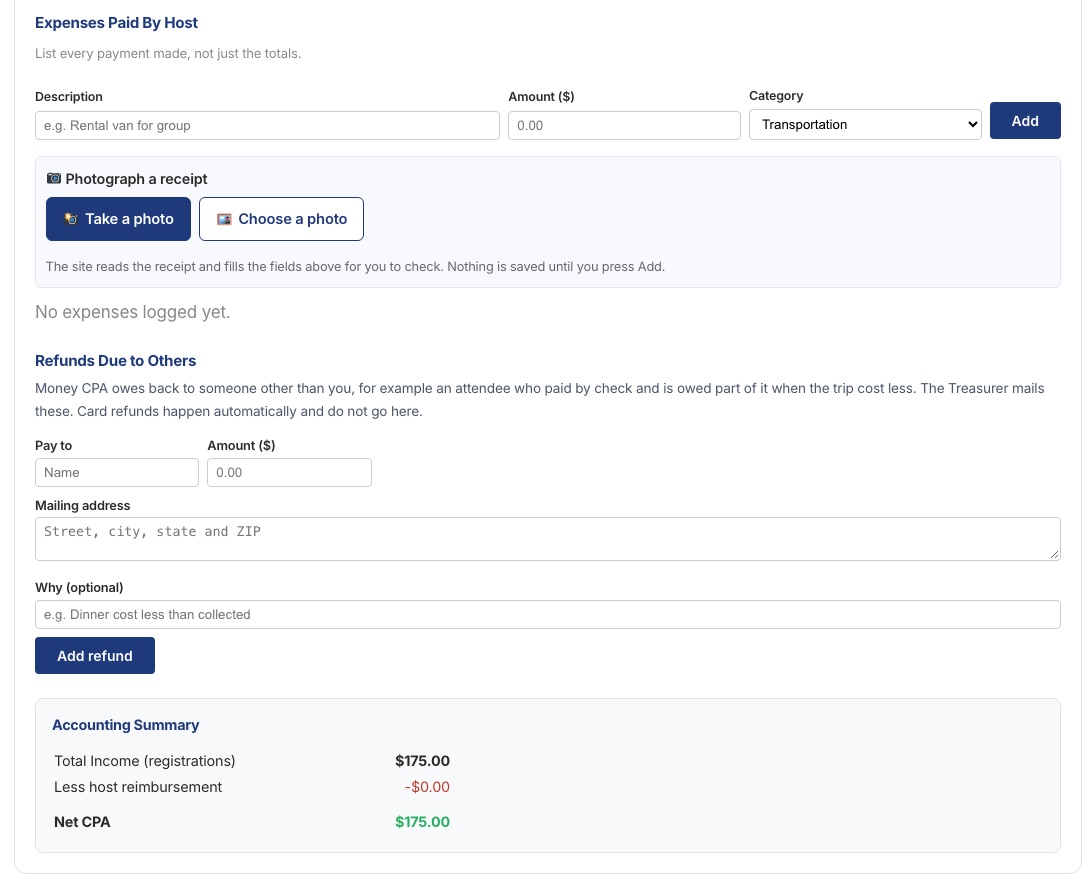
On the Expenses tab, list every payment you made yourself, not just the totals: the van, the group dinner deposit, tour tickets.
Take a photo opens your phone's camera; Choose a photo uses one you already have. The site reads the receipt and fills in the description, amount and category for you to check. Nothing is saved until you press Add.
Reimbursements and Refunds Due to Others: section 3 of the Roster/Accounting form. If CPA owes money to someone other than you, for example a driver who put the rental car on their own card, or a check payer owed part of it back, add their name, mailing address and amount. The Treasurer mails these. Card refunds happen automatically and do not go here.
The Expenses tab, with the receipt buttons and Reimbursements and Refunds Due to Others.
The Summary tab shows the payout report: each payment, the card fee Stripe kept, and the net to CPA.
The Summary tab: checks still to arrive, and the payout report.
Checklist
Every expense addedCHECK
Reimbursements due to others addedAS NEEDED
Step 8 of 10
Wrap up and hand it to the Treasurer
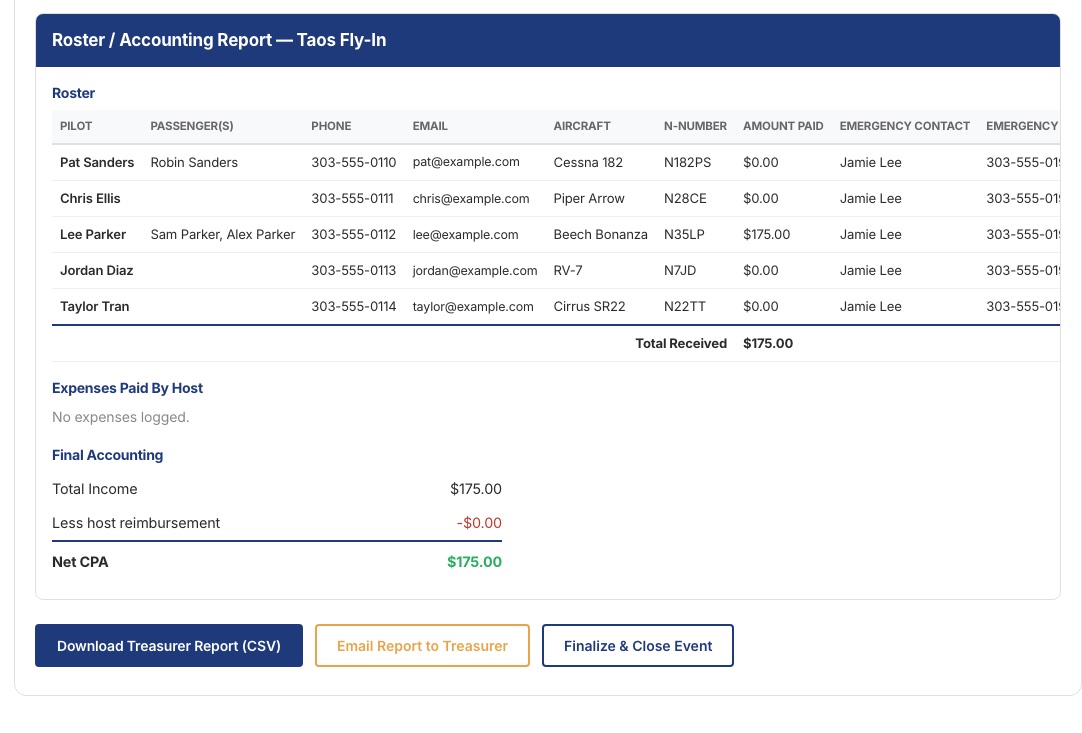
The Wrap Up tab shows the Roster / Accounting Report, laid out like the form the Treasurer has always used:
Total income
what members paid, cards and checks
Less card processing fees
what Stripe kept
Less host reimbursement
your expenses
Less reimbursements and refunds due others
from step 7
Net CPA
what CPA keeps
Add your mailing address so the Treasurer can send your reimbursement check.
Mail the checks you collected to the Treasurer, with your receipts. Wrap Up shows how many checks and the total, and the Treasurer's email says they are on the way. If a check was made out to you by mistake, endorse it to CPA first.
Press Email Report to Treasurer. Your fly-in also lands on the Treasurer's dashboard under "Fly-ins to close out".
Press Finalize and Close Event.
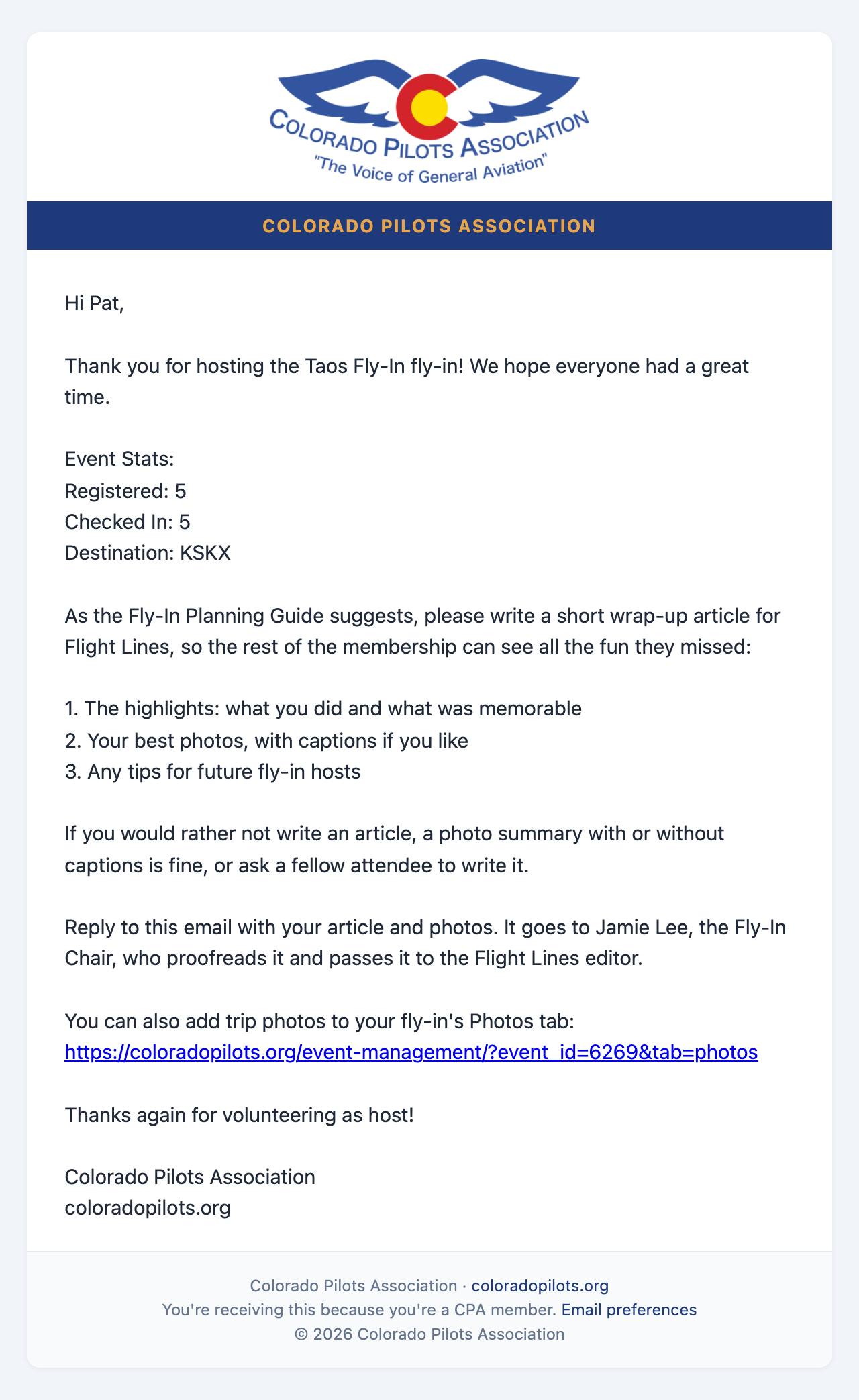
Three days later the site emails you asking for a wrap-up article or photo summary for Flight Lines. Reply with it: it goes to the Fly-In Chair, who proofreads it and passes it to the Flight Lines editor, as the Planning Guide describes.
The Treasurer mails your reimbursement and any refunds, marks each one mailed, and records the fly-in in the books. You see "Reimbursement sent" on Wrap Up when yours is on its way.
The Wrap Up tab and the report the Treasurer receives.
Checklist
Mailing address addedCHECK
Checks mailed to the TreasurerCHECK
Report emailed to the TreasurerCHECK
Event finalizedCHECK
Questions at any point: use the Contact page on the website and ask for the Fly-In Chair.
Step 9 of 10
Who gets which email
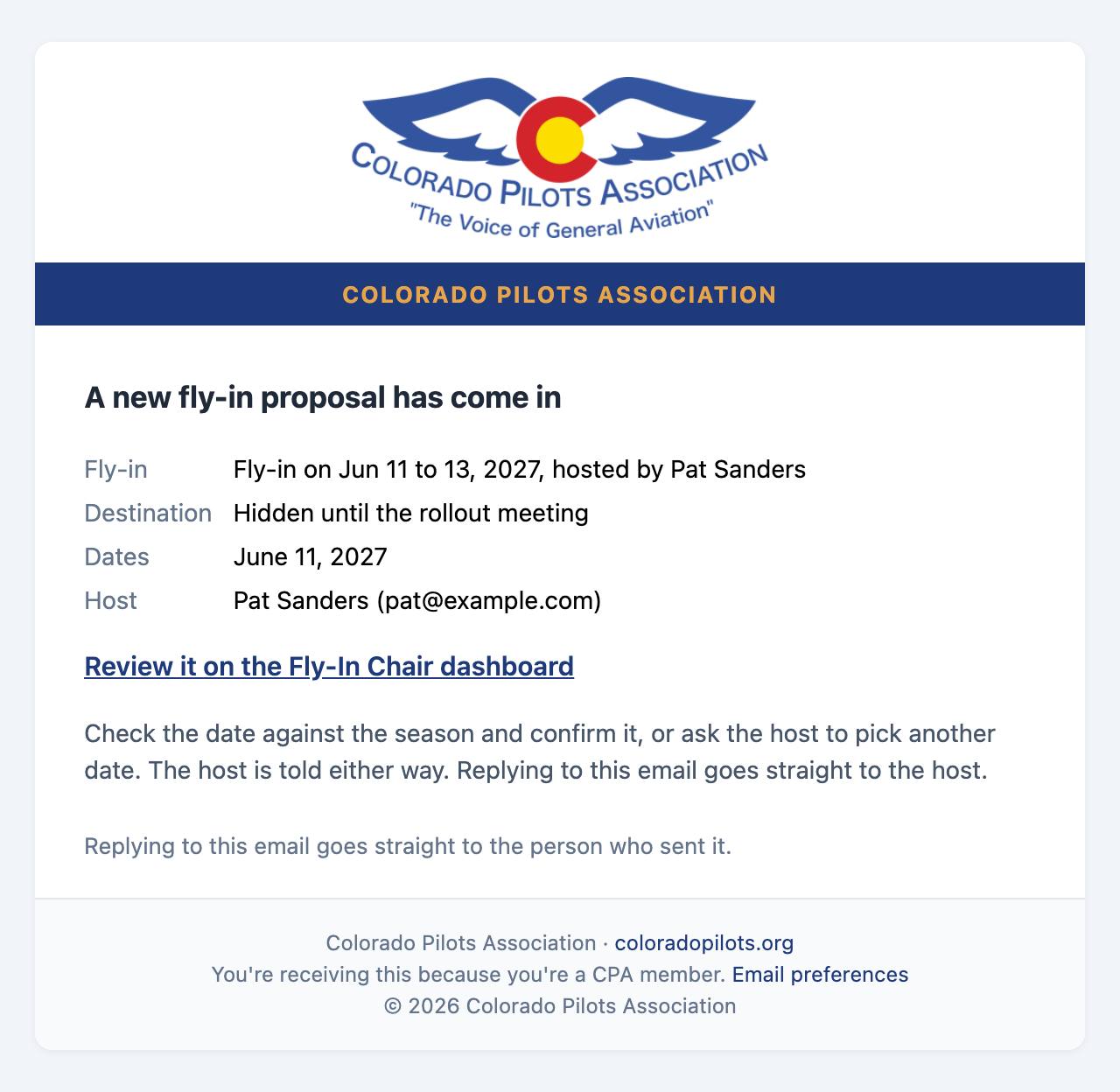
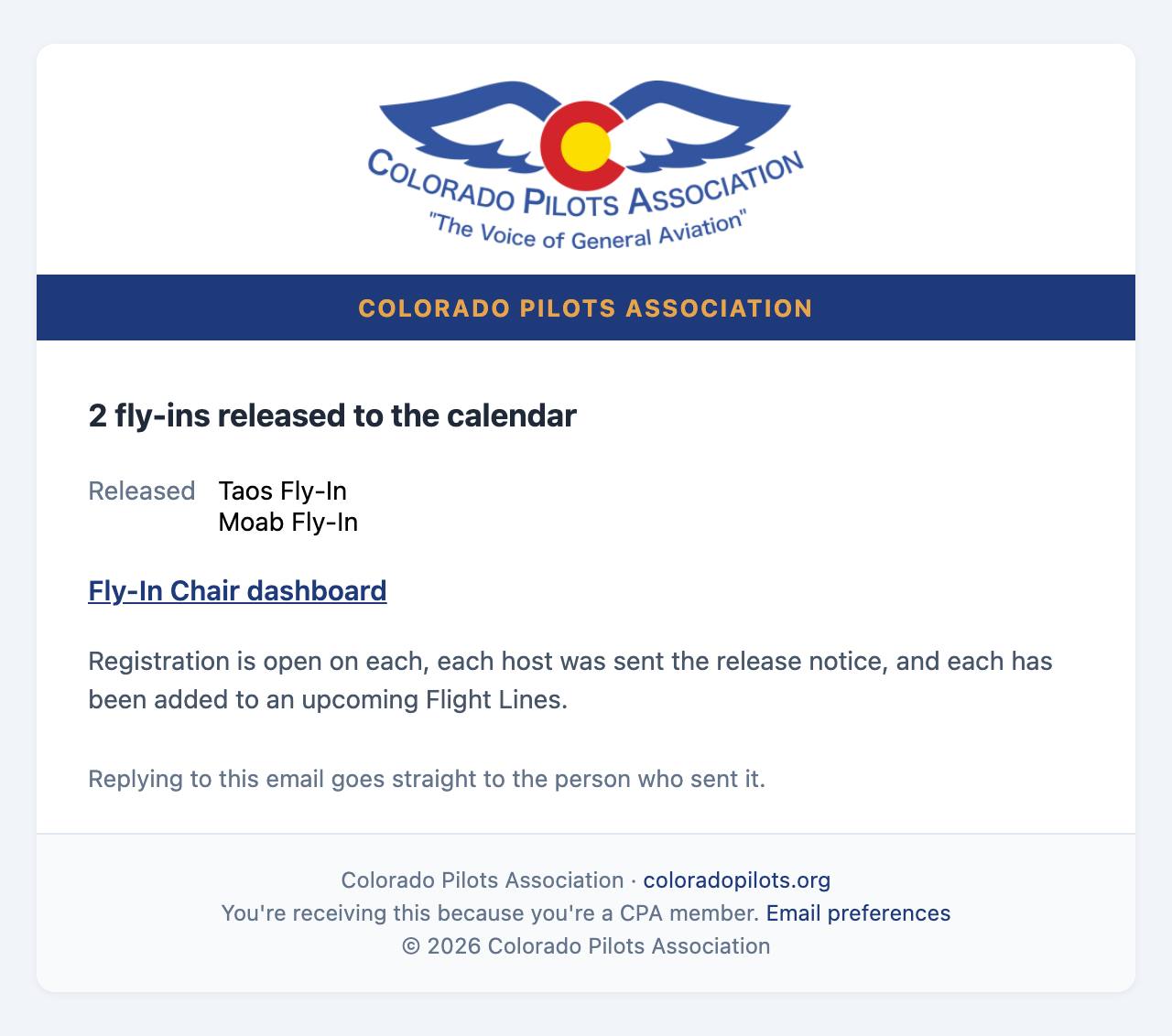
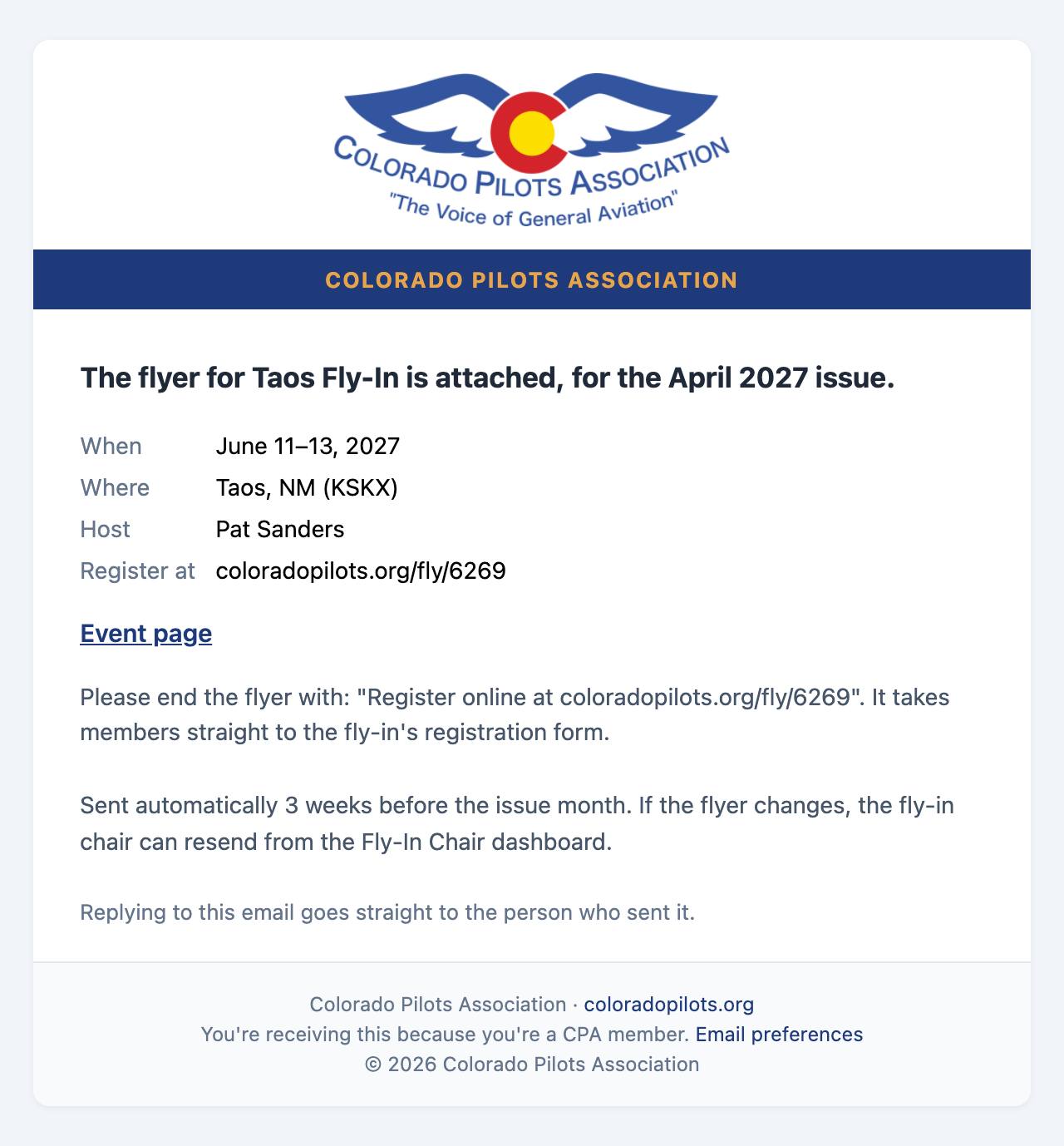
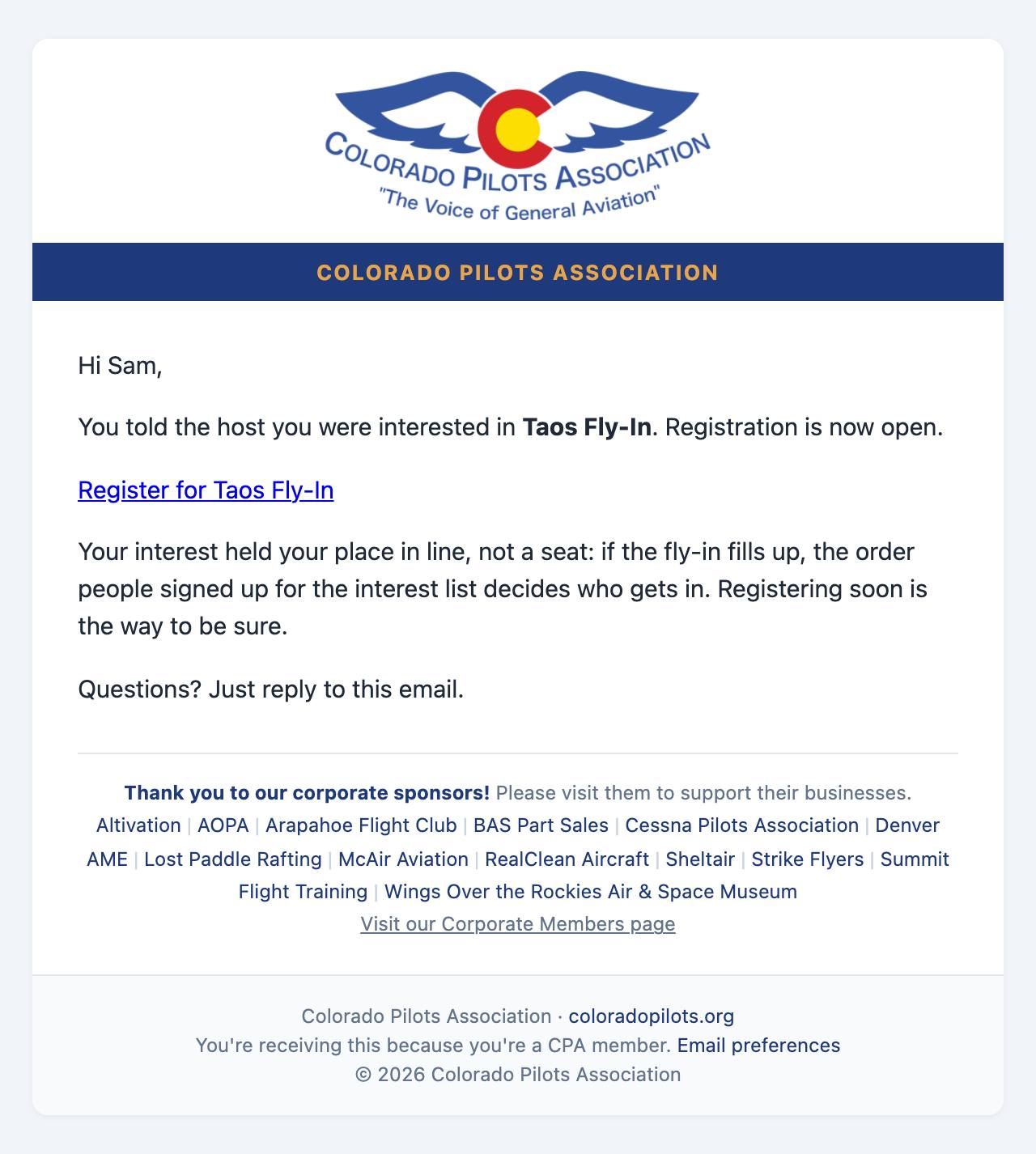
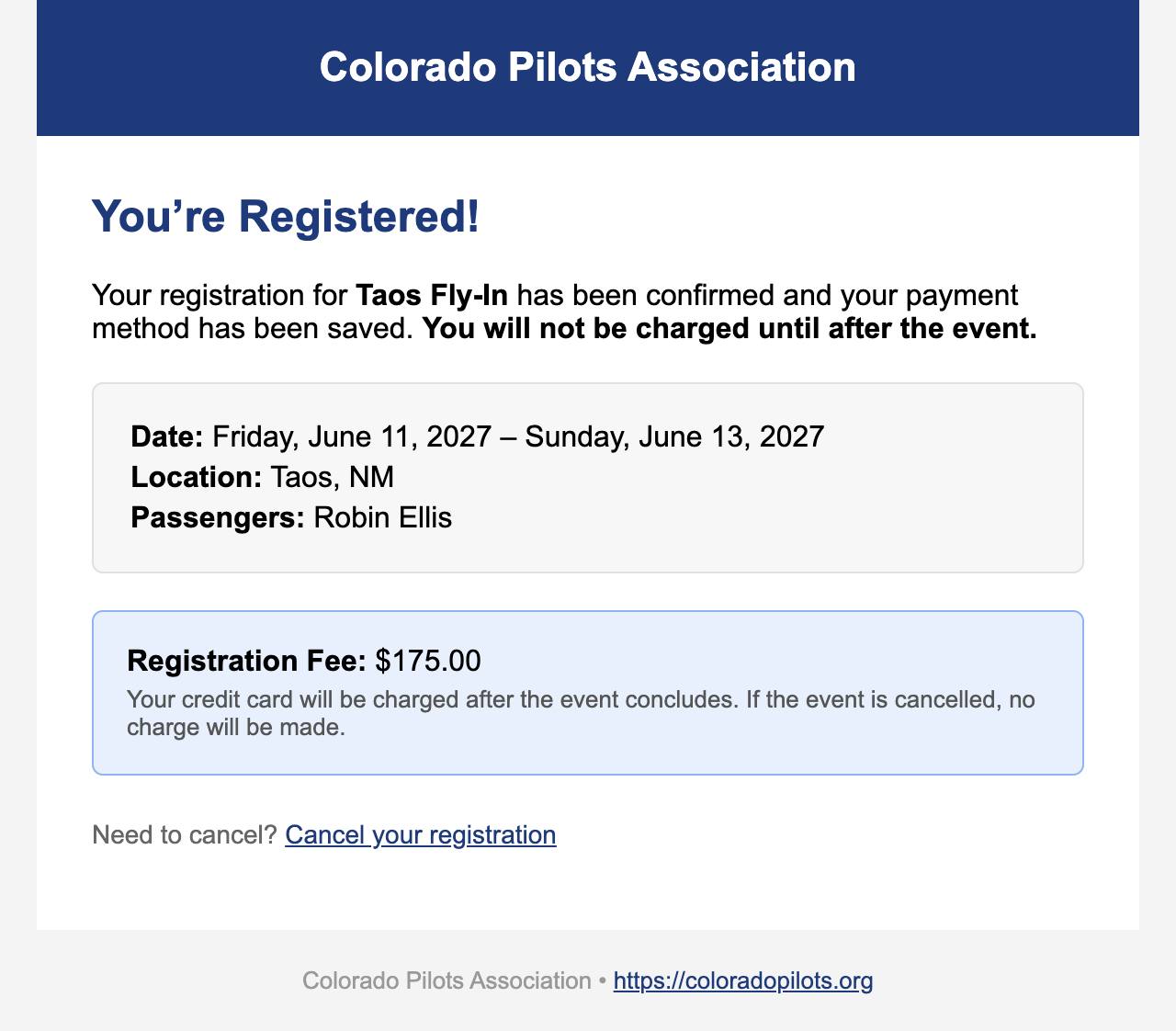
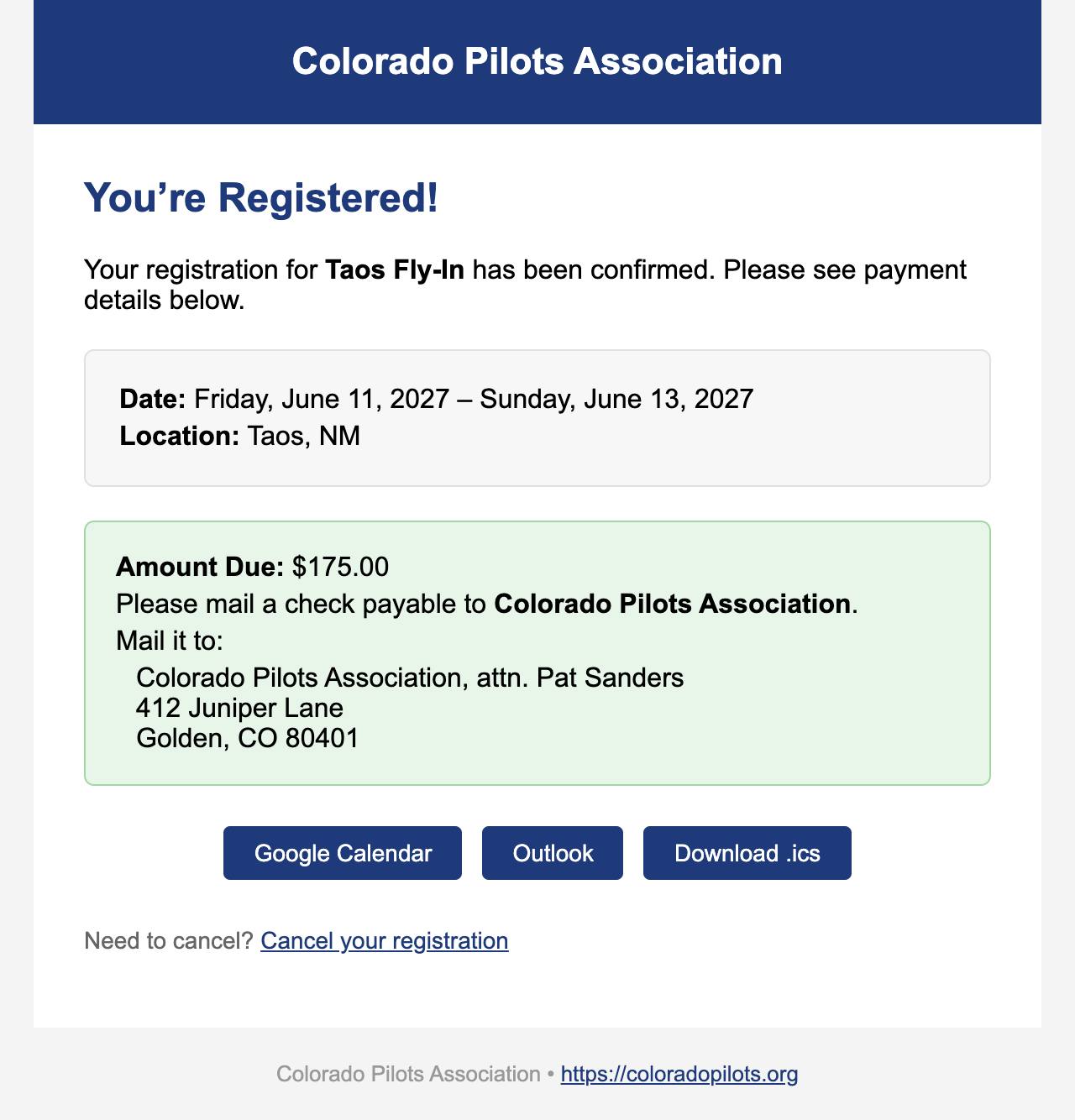
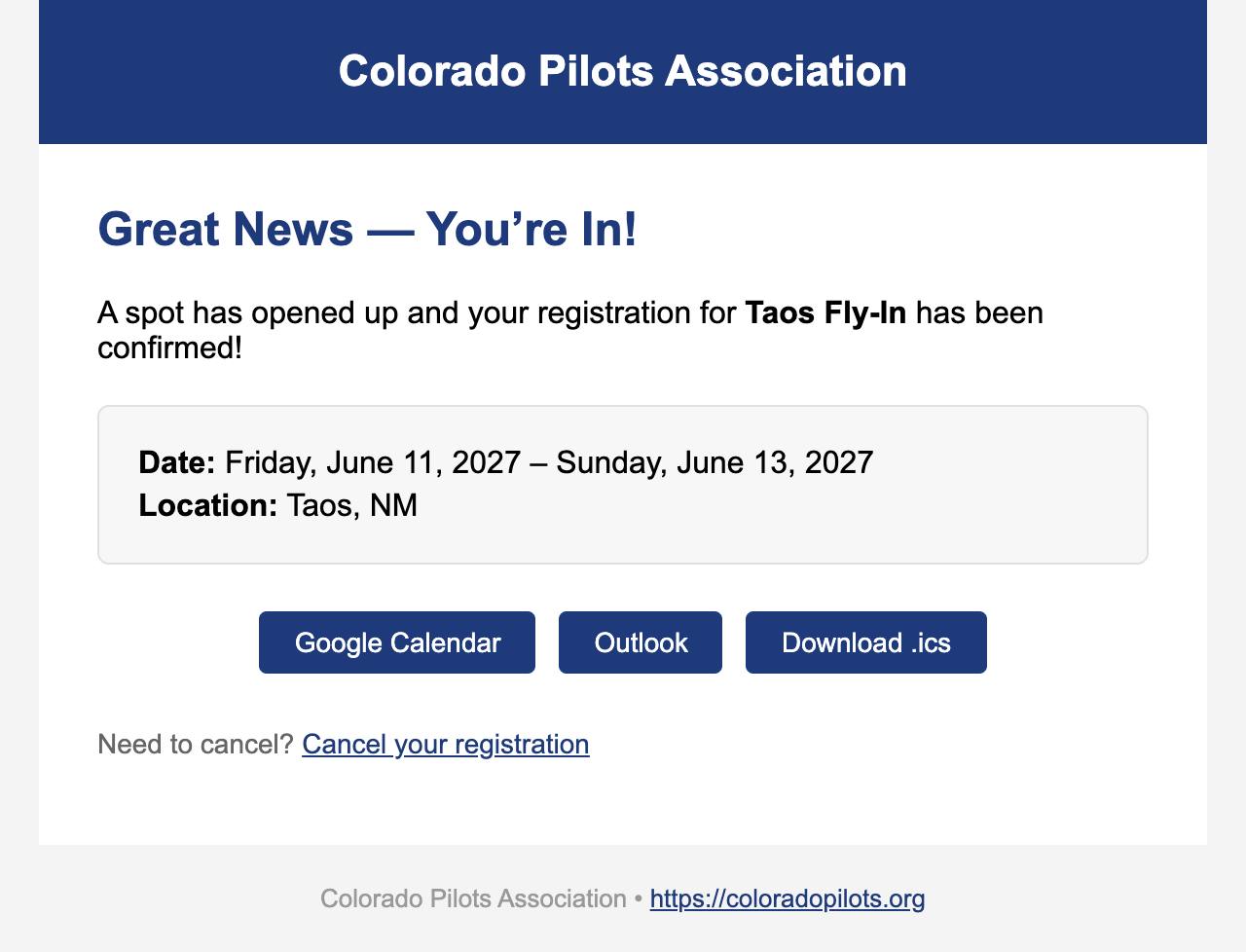
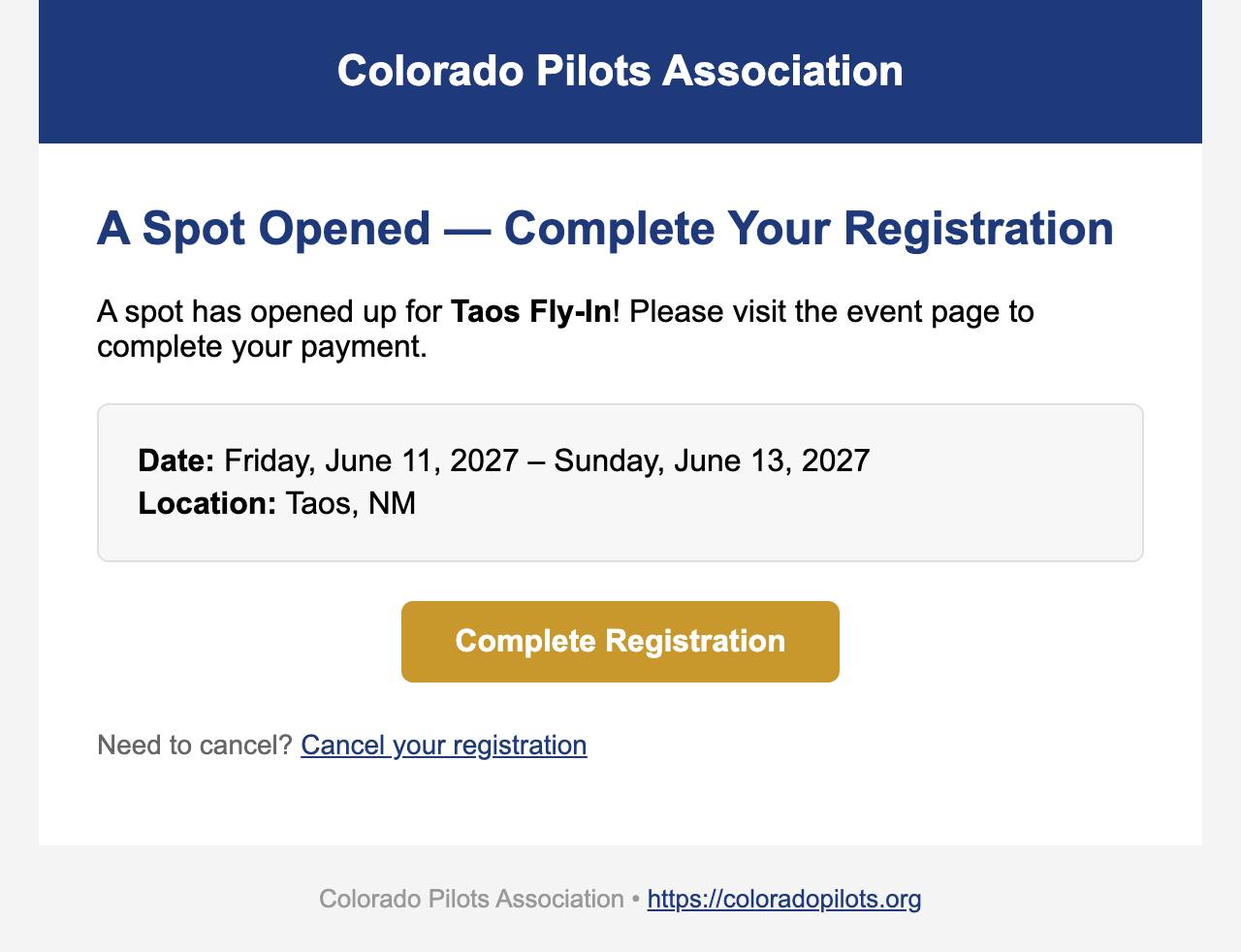
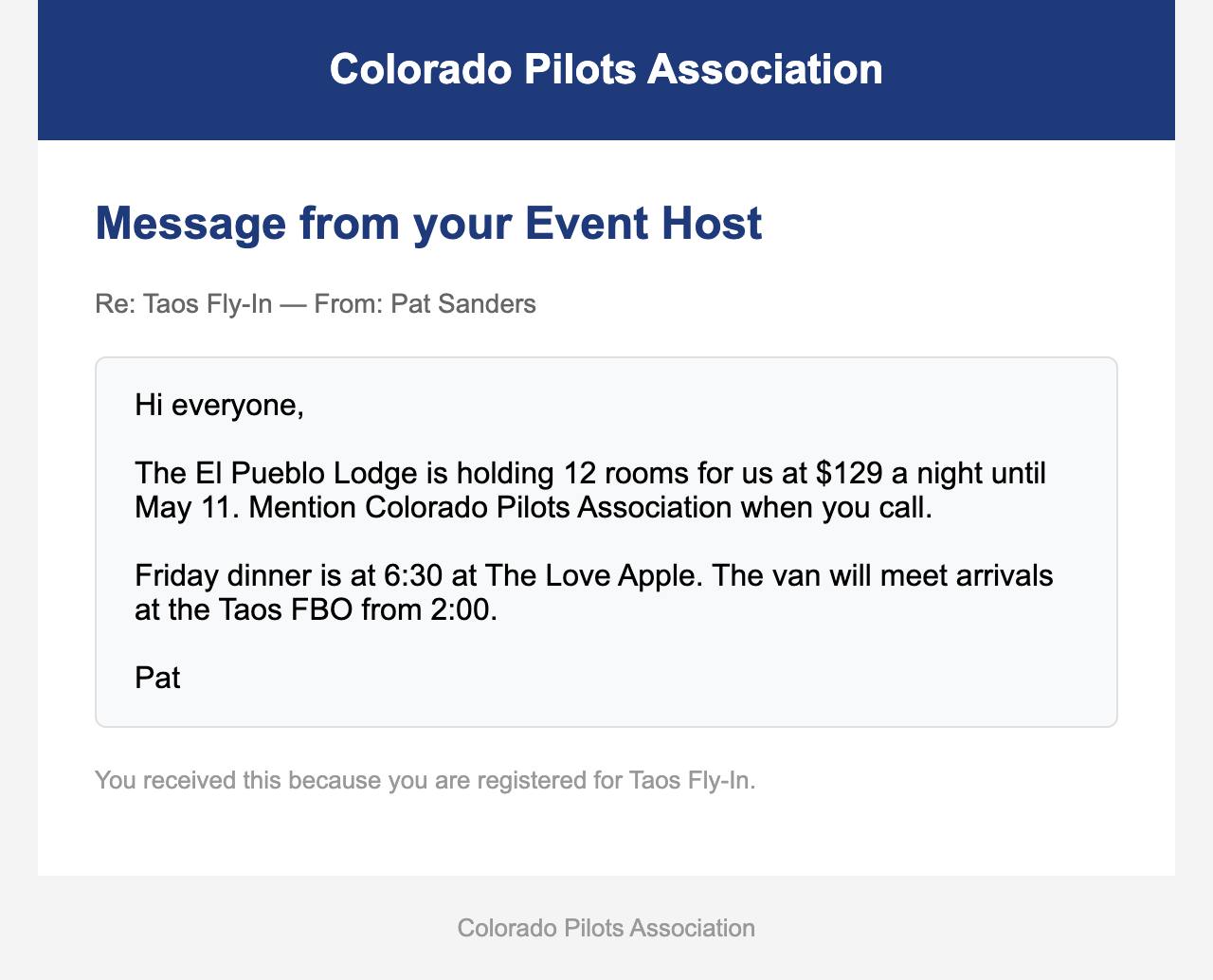
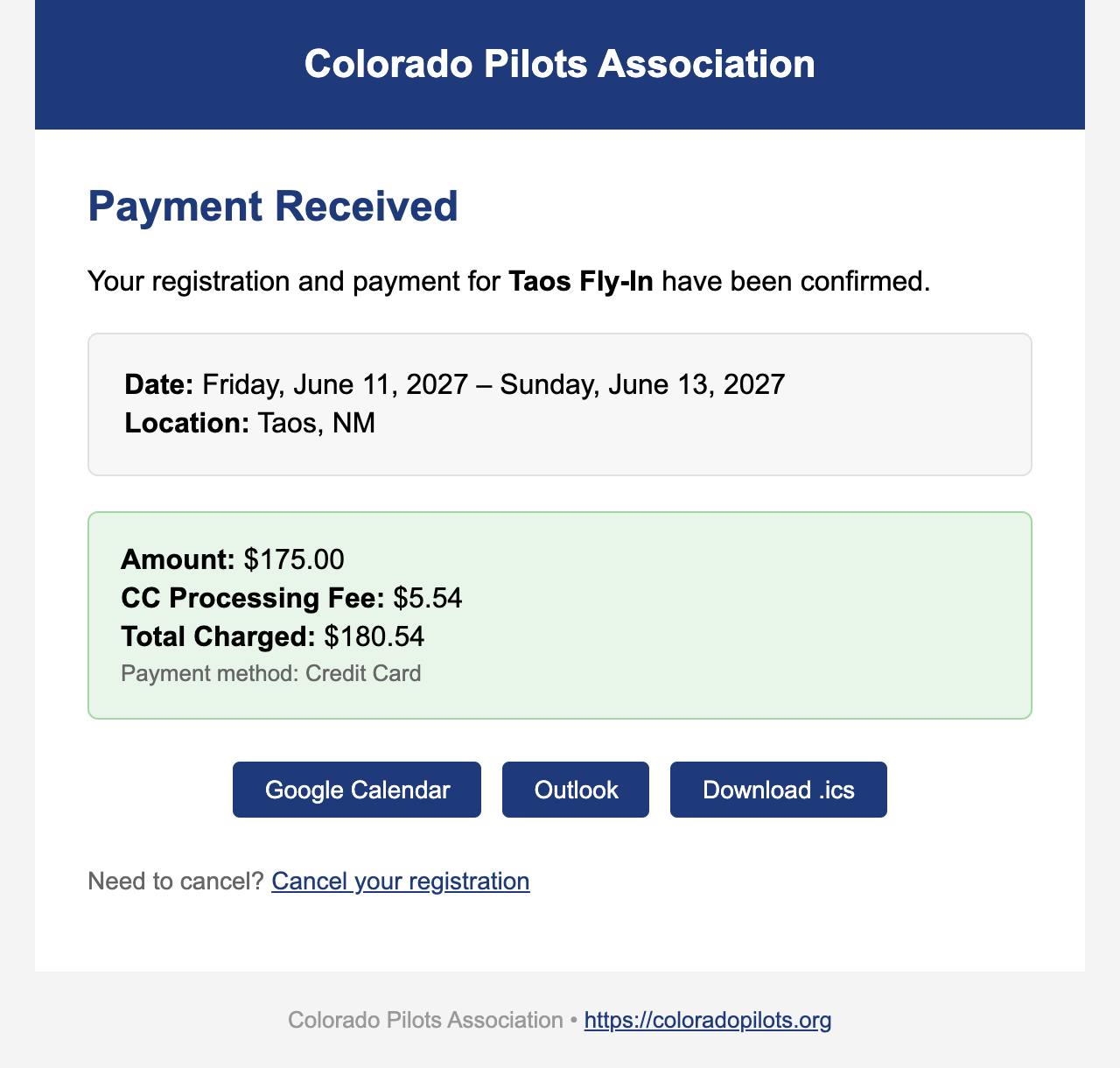
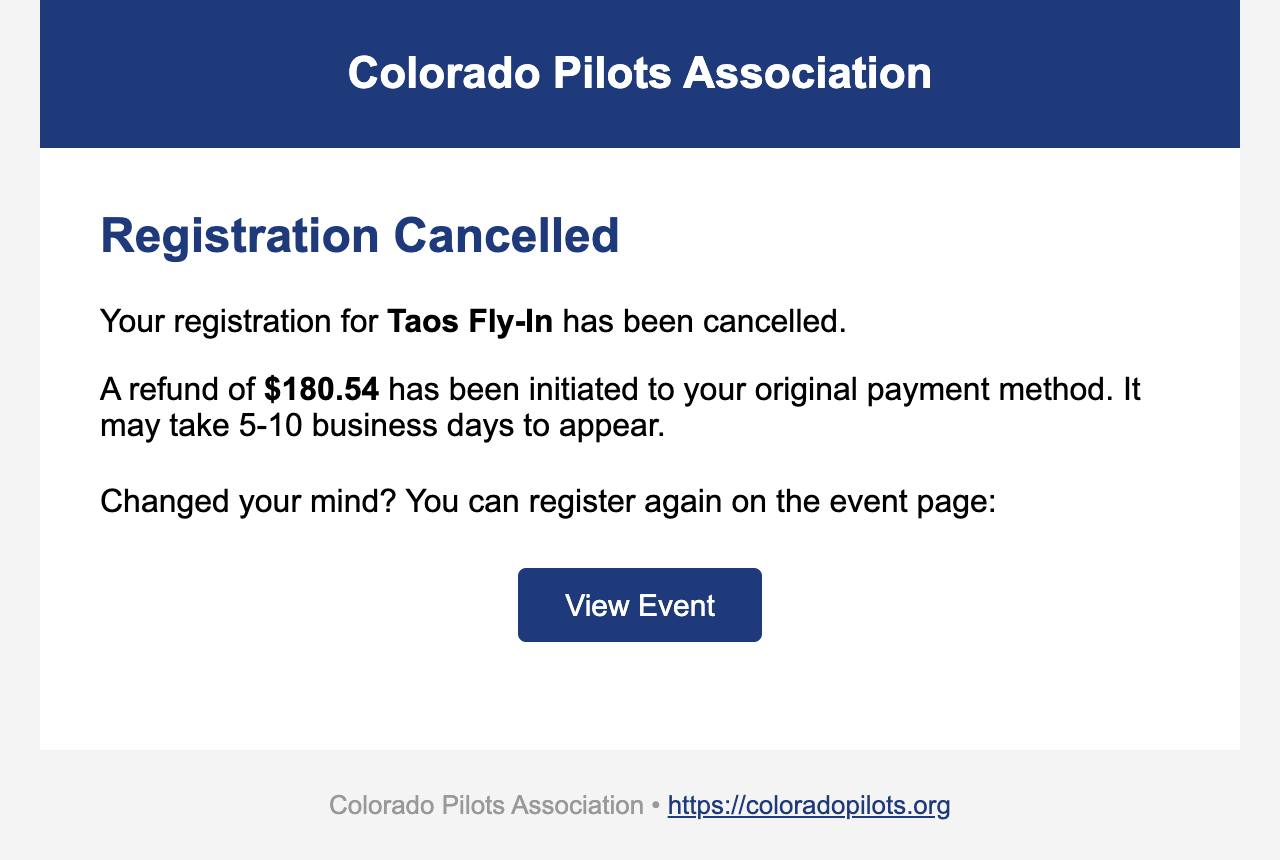
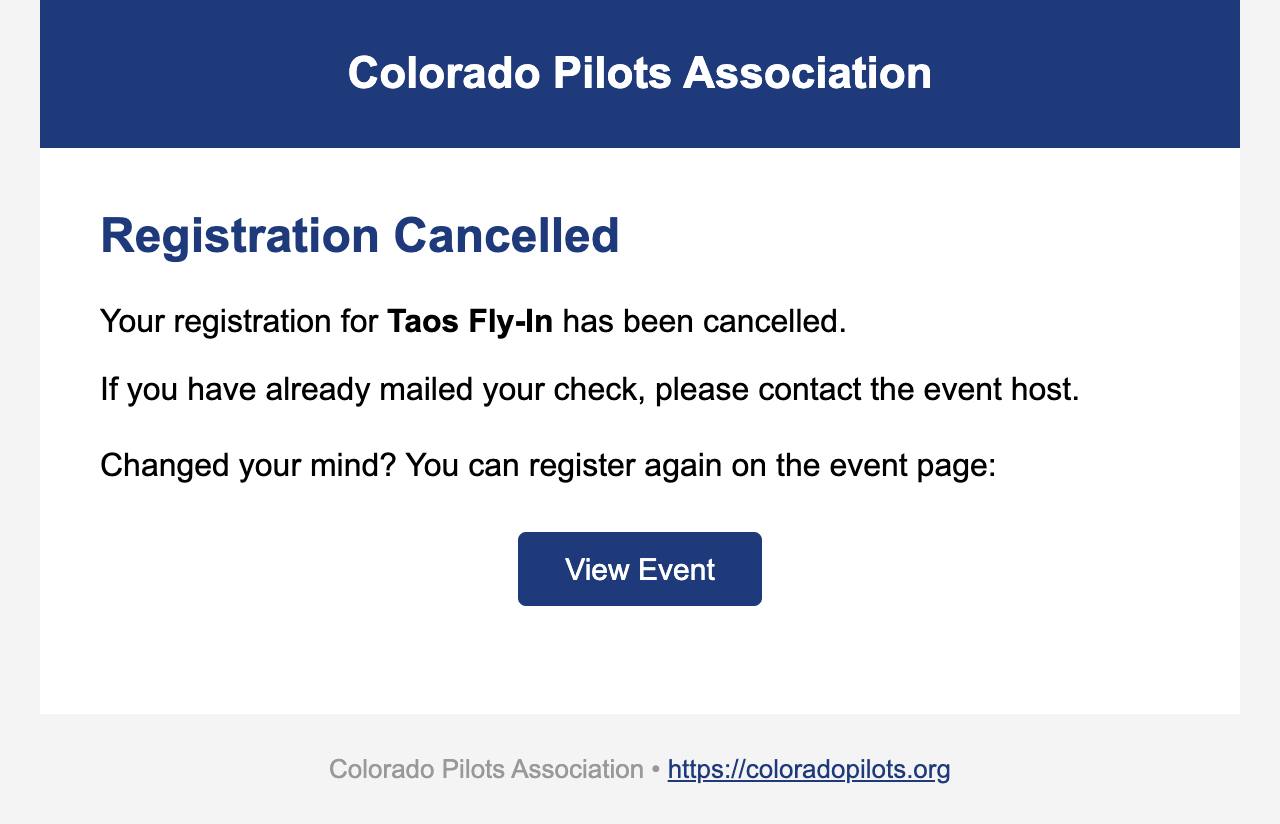
These are the real emails, produced by the website itself from a made-up "Taos Fly-In" hosted by "Pat Sanders". The website sends each one on its own as the fly-in moves along. They are grouped by who receives them, in the order they arrive.
Emails for the Fly-In Chair, the Treasurer and the Flight Lines editor go to whoever holds that seat on the website. If a seat is empty, the webmaster gets the email to pass on. Replying to the host emails reaches the Fly-In Chair.
To you, the host
You do not get an email for each sign-up. The Roster tab shows them as they arrive.
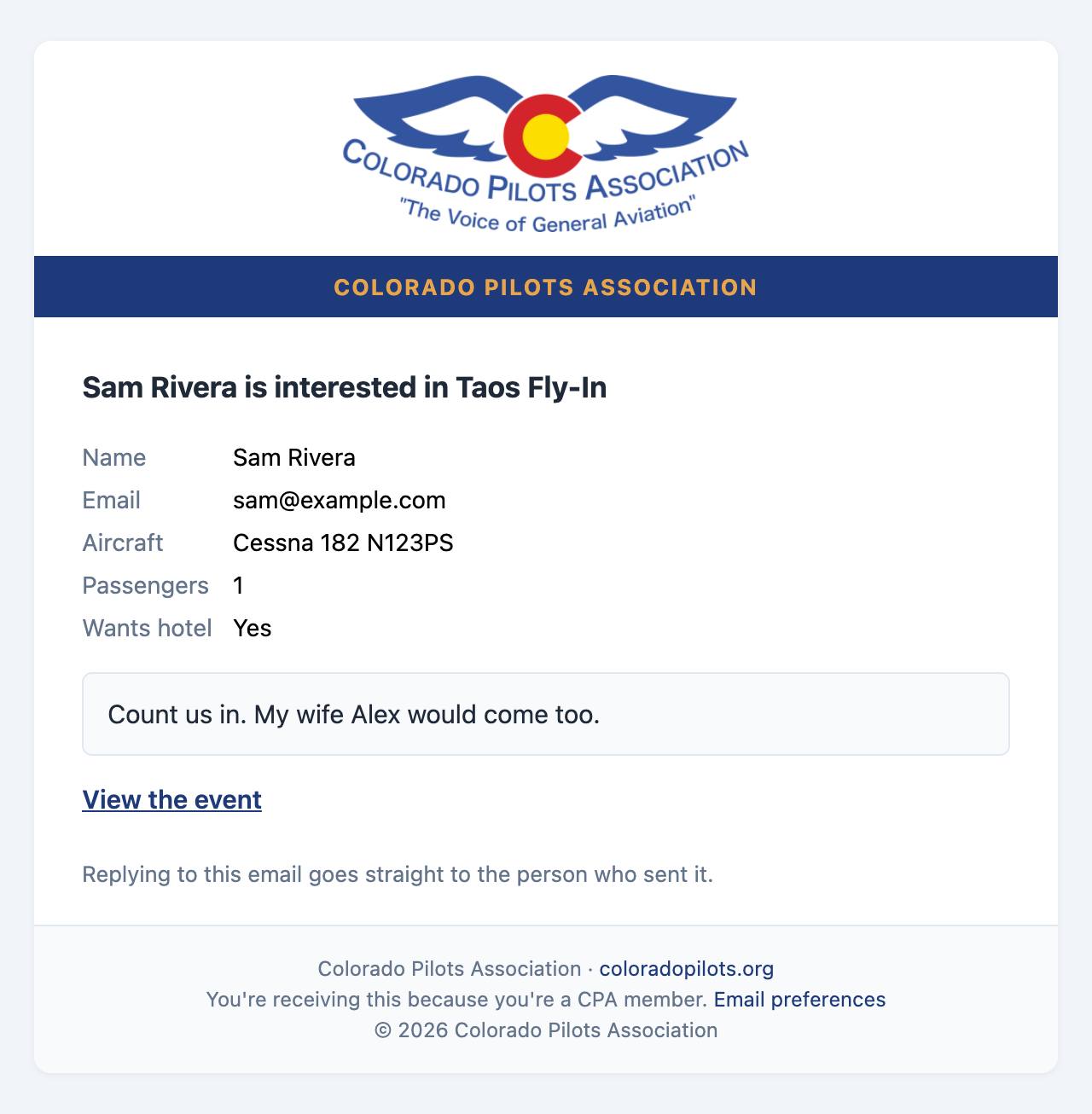
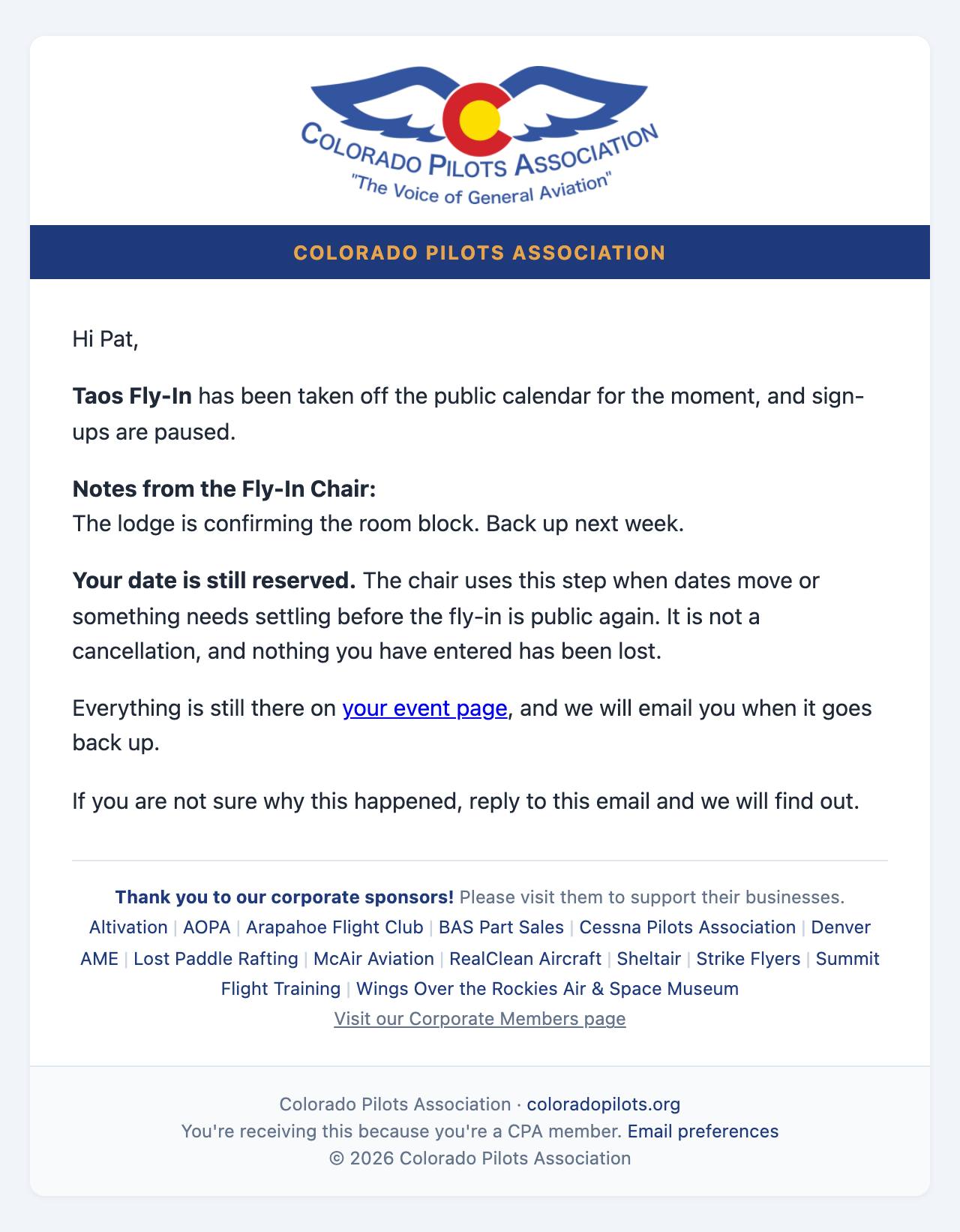
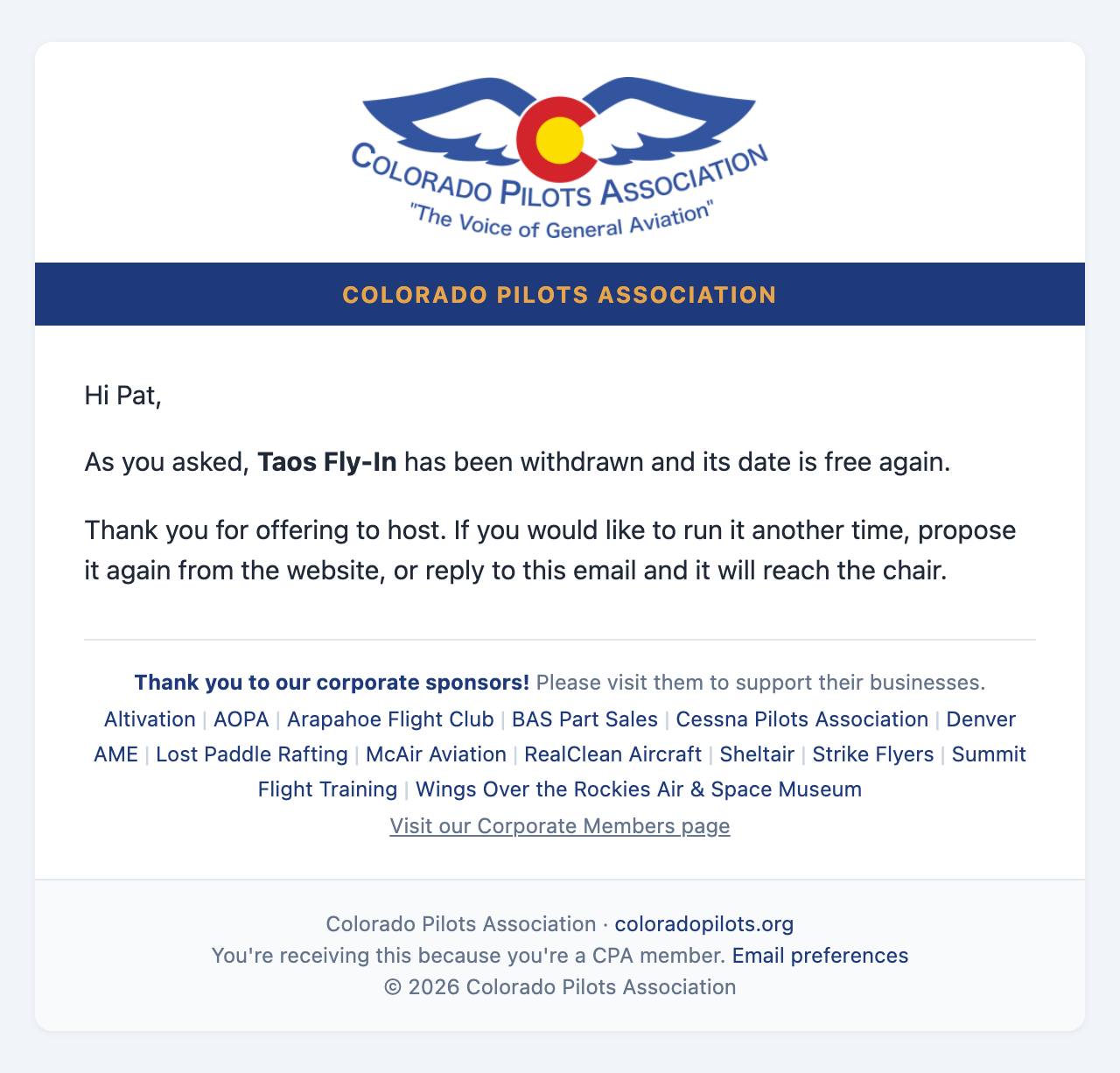
You submit the proposalWe have your fly-in proposal: Taos Fly-InThe Fly-In Chair confirms your dateDate reserved: Taos Fly-InAnother fly-in already has that datePlease pick another date: Taos Fly-InThe chair asks for changes to your flyerA few changes to your flyer: Taos Fly-InThe chair approves your flyerYour flyer is set for Flight Lines: Taos Fly-InYour fly-in goes publicLive on the calendar: Taos Fly-InThree weeks before your Flyer is due, and on the day if it is not inYour flyer is due Saturday, March 13: Taos Fly-InA member says "I'm interested" (one email each)Fly-in interest: Taos Fly-In — Sam RiveraThe chair takes it off the calendar for nowTaken off the calendar for now: Taos Fly-InYou ask to withdrawWithdrawn: Taos Fly-In3 days after you finalize the eventCPA Fly-In Wrap-Up: Taos Fly-In, share your story and photos
To the Fly-In Chair
The chair confirms dates, reviews flyers and releases fly-ins on the Fly-In Chair dashboard; the host is emailed after each of those. Replying to the proposal notice goes straight to the host.
A host submits a proposal (before the rollout meeting)New fly-in proposal: Fly-in on Jun 11 to 13, 2027, hosted by Pat SandersFly-ins scheduled to go public go live2 fly-ins released to the calendar
To the Flight Lines editor
3 weeks before the month of the issueFor April 2027: flyer for Taos Fly-In
To members
Sign-up opens (to everyone who said "I'm interested")Registration is open: Taos Fly-InThey sign up and save a cardRegistration Confirmed: Taos Fly-InThey sign up to pay by checkRegistration Confirmed: Taos Fly-InThe trip is full when they sign upWaitlisted: Taos Fly-InSomeone cancels and they move upA Spot Opened Up! Taos Fly-InThey move up but still need to choose how to payA Spot Opened Up, Action Needed: Taos Fly-InYou send a Group Email(the subject you write)You press Process Charges after the tripPayment Received: Taos Fly-InThey cancel after a card was chargedRegistration Cancelled: Taos Fly-InThey cancel while paying by checkRegistration Cancelled: Taos Fly-In
Reminders to members (only when switched on)
These three go out only if a site administrator switches them on for your fly-in. If you want them, ask the Fly-In Chair; otherwise send your own with Group Email.
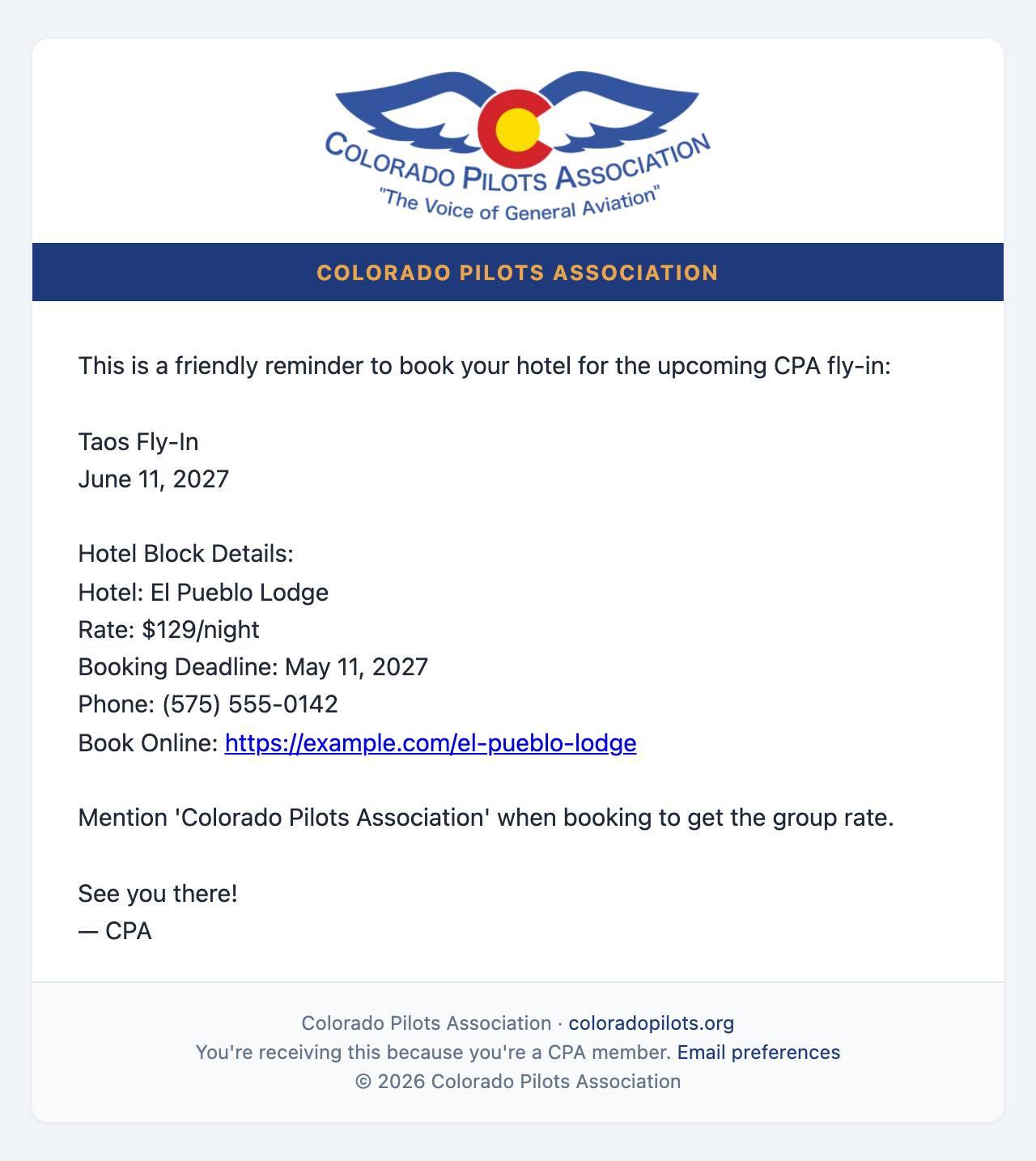
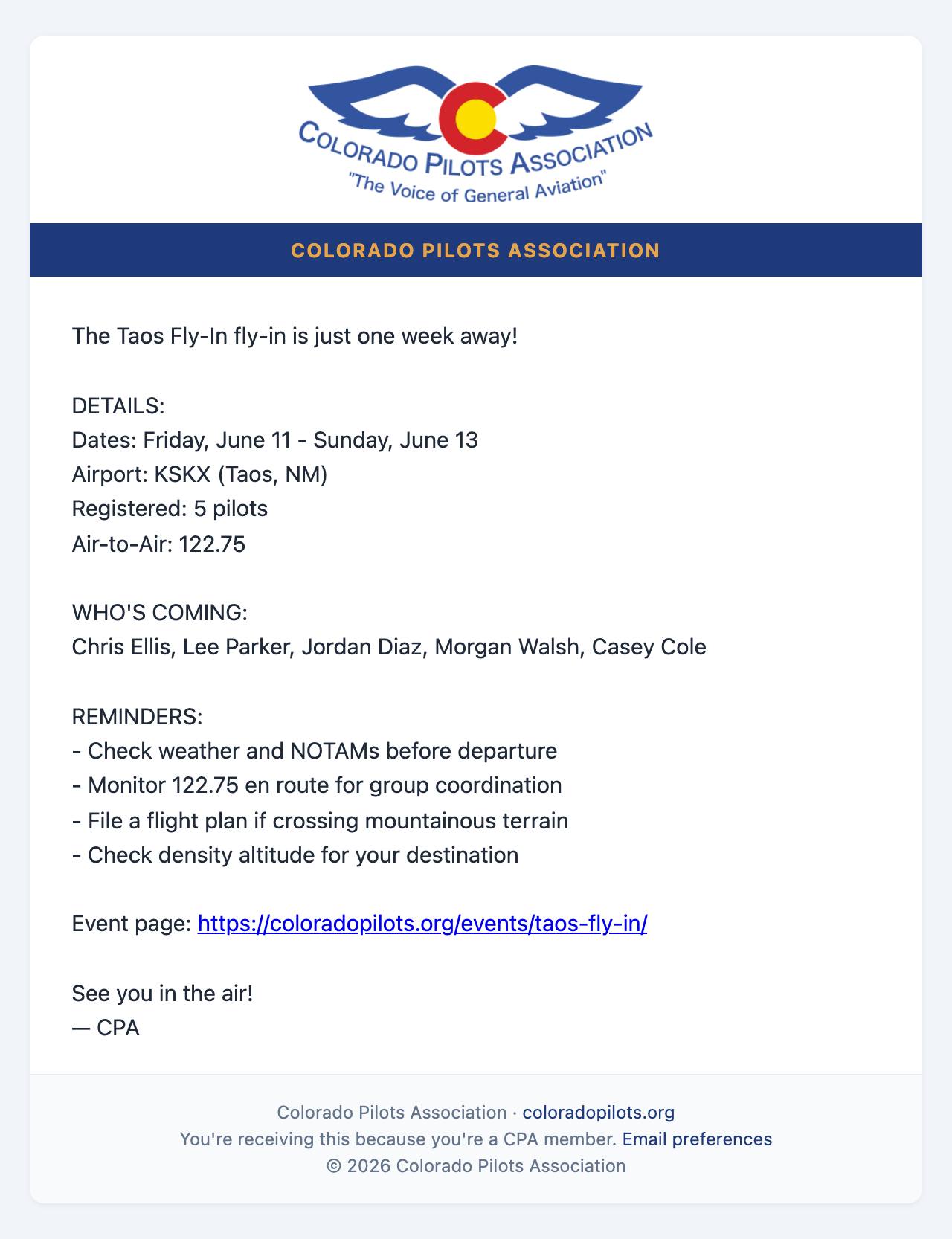
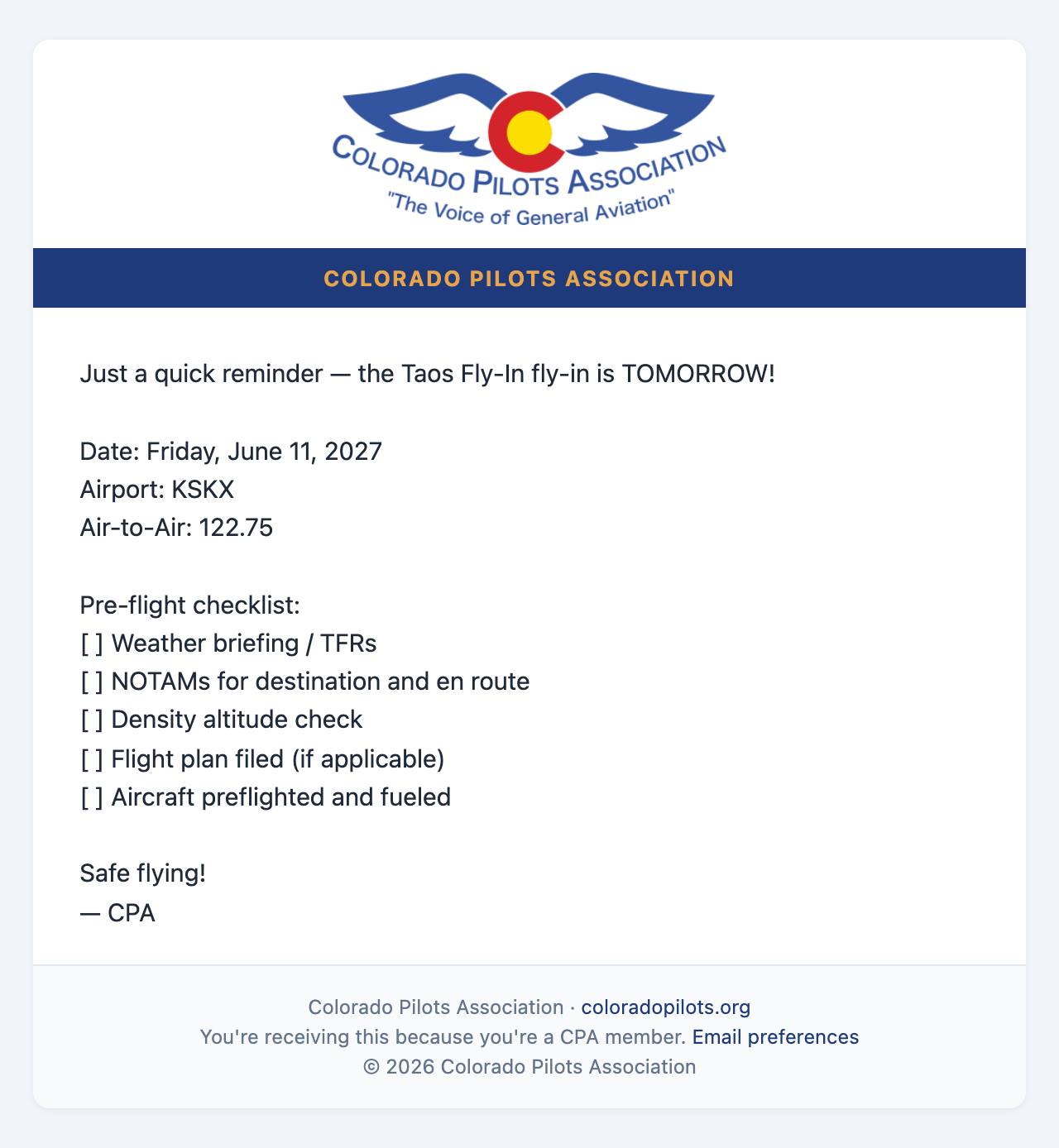
About 30 days before the tripHotel Reminder: Taos Fly-In — Book by May 11, 2027One week beforeOne Week Out: Taos Fly-In — 5 pilots registered!The day beforeTomorrow: Taos Fly-In — See you there!
To the Treasurer
The link takes her to "Fly-ins to close out" on the Treasurer dashboard, where she marks your reimbursement and any refunds mailed.
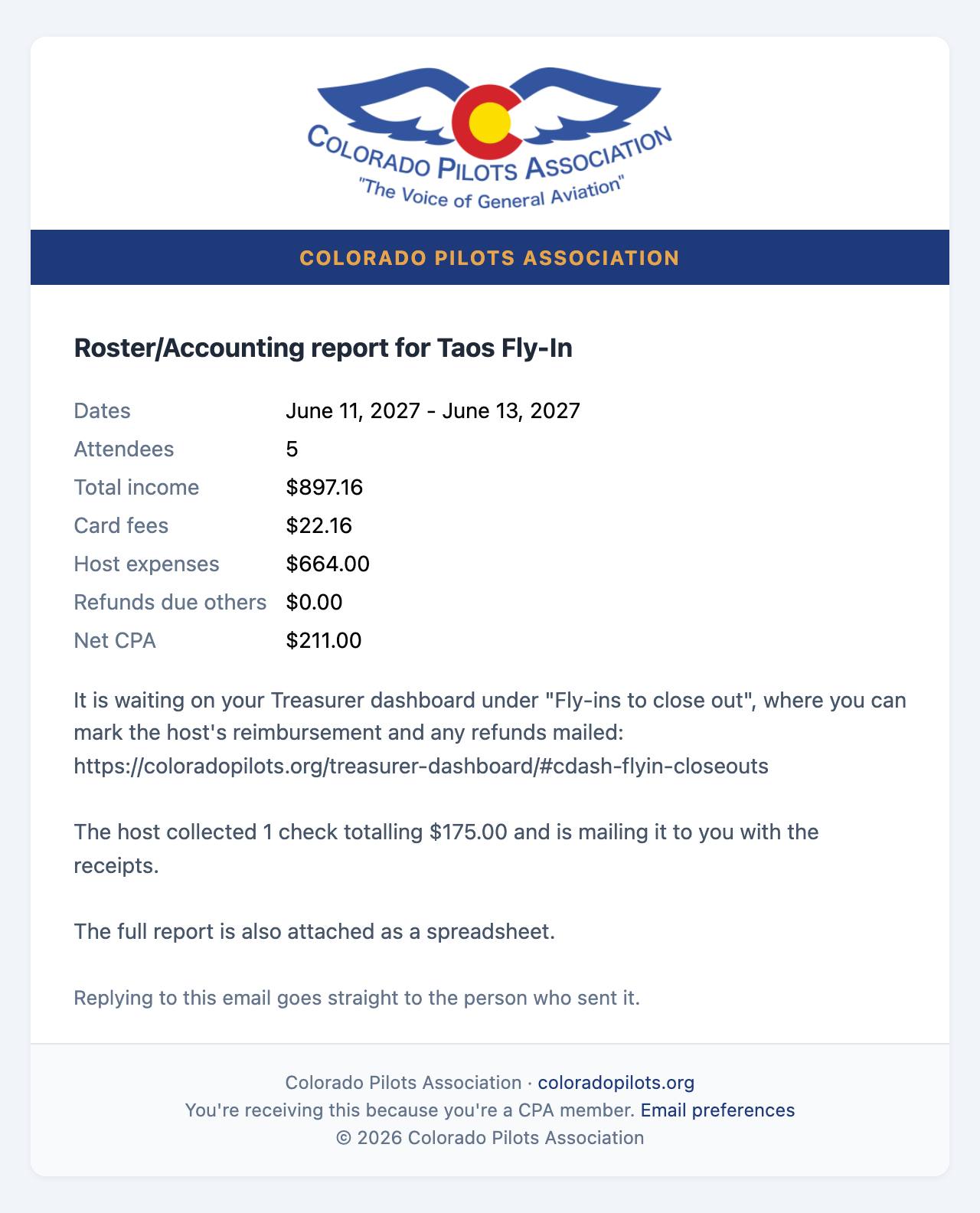
You press Email Report to TreasurerCPA Fly-In Financial Report: Taos Fly-In - June 11, 2027 - June 13, 2027
Step 10 of 10
Questions and answers
Press a question to see its answer.
The plan
Is the website replacing Bill's fly-in process?
No. It follows the Fly-In Planning Guide step for step: date first, destination kept quiet until the rollout meeting, the flyer through the Fly-In Chair and into Flight Lines, checks payable to CPA, and the Roster / Accounting form to the Treasurer. Flight Lines still carries every flyer; the website is where members sign up.
Do I have to gather anything new?
No. Every box on the form is something the Planning Guide already asks you to gather for your flyer or your Roster / Accounting form. You type it once, in one place, instead of into a flyer, a roster and a spreadsheet.
I don't have a flyer yet. Can I still propose?
Yes. Only the event name and start date are required. Add the flyer, and anything else, later from your event page.
How do I get back to my fly-in's management page?
Go to My Account, then My Events: your fly-ins are listed under "Fly-ins you're hosting", each with an Open management page button. The emails the site sends you link to it too, and once your fly-in is on the calendar its page has an Event Management button.
Can I change details after I submit?
Yes, at any time, from your event page. If you change the flyer after the chair approved it, the chair looks at it again before it goes to Flight Lines.
Who can see my fly-in before the rollout meeting?
Only the Fly-In Chair, and until the rollout meeting the chair's notice shows just your dates and your name, not where you are going. It is not on the calendar until the chair releases it.
Money and cards
Does CPA or the website keep members' card numbers?
No. Members type their card on Stripe's own secure page, never on CPA's website. Stripe, the payment company, keeps the card. The website and the host never see the number.
Does the host ever hold the money?
Never card money: card payments go from Stripe straight into CPA's bank account, which the Treasurer manages. Checks come to you, always payable to Colorado Pilots Association, and you send them all to the Treasurer after the trip, as the Planning Guide describes.
When are cards charged?
Only after the trip, when you press Process Charges. Before that, nothing is charged. You can change an amount, or skip someone, before you press it.
What if the fly-in is cancelled?
Saved cards are never charged. The sign-up email tells members this in so many words.
What does paying by card cost the member?
A card processing fee of 2.9% plus 30 cents is added, so CPA receives the full fee. Members see it before they choose. Paying by check or bank transfer has no fee.
Can members still pay by check?
Yes. Checks are payable to Colorado Pilots Association and mailed to you, at the address on your membership record or a different one you choose on Event Details. Mark each one received when it arrives.
What do I do with the checks?
Mark each one received on the Summary tab and keep them together. After the trip, mail them all to the Treasurer with your receipts, as the Planning Guide describes. If one was made out to you by mistake, endorse it to CPA before mailing it.
A member cancelled after their card was charged. What happens?
The refund goes back to their card through Stripe, and they get an email with the amount. It can take 5 to 10 business days to show.
How do I get reimbursed for what I paid for?
Add each expense on the Expenses tab, add your mailing address on Wrap Up, and press Email Report to Treasurer. The Treasurer mails your check; Wrap Up shows "Reimbursement sent" when it is on its way.
Do I still keep my paper receipts?
Yes. Photograph them for the Expenses tab, and keep the paper until the Treasurer has closed out the fly-in.
Sign-ups and people
What happens when the trip fills up?
Later sign-ups go on a waiting list in the order they signed up. When someone cancels, the next person moves up automatically and gets an email.
Do I get an email every time someone signs up?
No. The Roster tab shows sign-ups as they arrive, and Export CSV gives you the list as a spreadsheet.
Who can see the roster, phone numbers and emergency contacts?
You, the Fly-In Chair, the Treasurer, and CPA's officers and committee chairs see everything. People who have signed up see a "Who's coming" list on the fly-in's page with names, passengers, aircraft, N-numbers and home airports only: no phone numbers, emails or emergency contacts.
How do I send everyone the hotel details or a weather call?
Use the Group Email tab. You can send to everyone signed up, or only to the members who said they are interested.
Will members get reminder emails before the trip?
Only if a site administrator switches them on for your fly-in. Ask the Fly-In Chair, or send your own with Group Email.
Can I do all this from my phone?
Yes. The pages work on a phone, and on the Expenses tab "Take a photo" opens your phone's camera to read a receipt.
Help
Who do I ask when I'm stuck?
The Fly-In Chair, through the Contact page. If something on the website looks wrong, press the FEEDBACK tab on the side of any page and describe it; you can attach a screenshot.