What every item on your Fly-In Chair dashboard and in your account menu is for, in the order the season uses them. Go one step at a time.
Same plan, one place. Your dashboard follows your Fly-In Planning Guide: the date first, the destination kept quiet until the January rollout meeting, the Preview and the flyers through you to Flight Lines, and the Roster / Accounting form to the Treasurer at the end. Each step below names the part of the Planning Guide it carries out. What hosts see is in Hosting a Fly-In.
Step 1 of 12
Your account menu
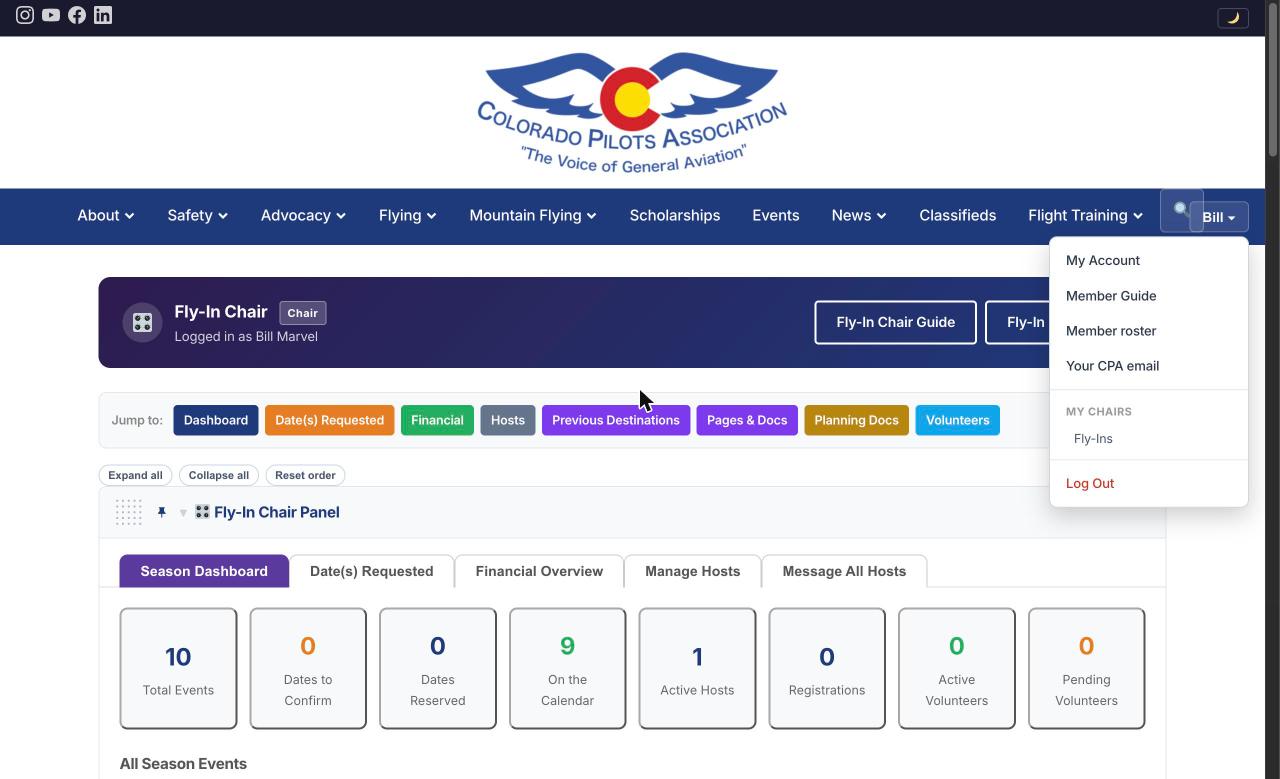
Press your name at the top right of any page. The menu has:
My Account: your own membership, password, profile and the fly-ins you are signed up for or hosting. It is the same page every member has.
Member Guide: the help page every member gets.
Member roster: the printable list of members, for members only.
Your CPA email: sets up the email address that comes with your seat, step by step, on your phone or computer, so its mail arrives where you already read email.
My Chairs, then Fly-Ins: your Fly-In Chair dashboard. This is the page the rest of this guide is about. If you hold more than one seat, each one is listed here.
On the dashboard itself, the Fly-In Dashboard button in the blue band at the top goes to the public Fly-In Activities page, the one members see.
The account menu, with My Chairs, Fly-Ins.
Checklist
Found Fly-Ins under My ChairsCHECK
Your CPA email set upONCE
Step 2 of 12
The Season Dashboard
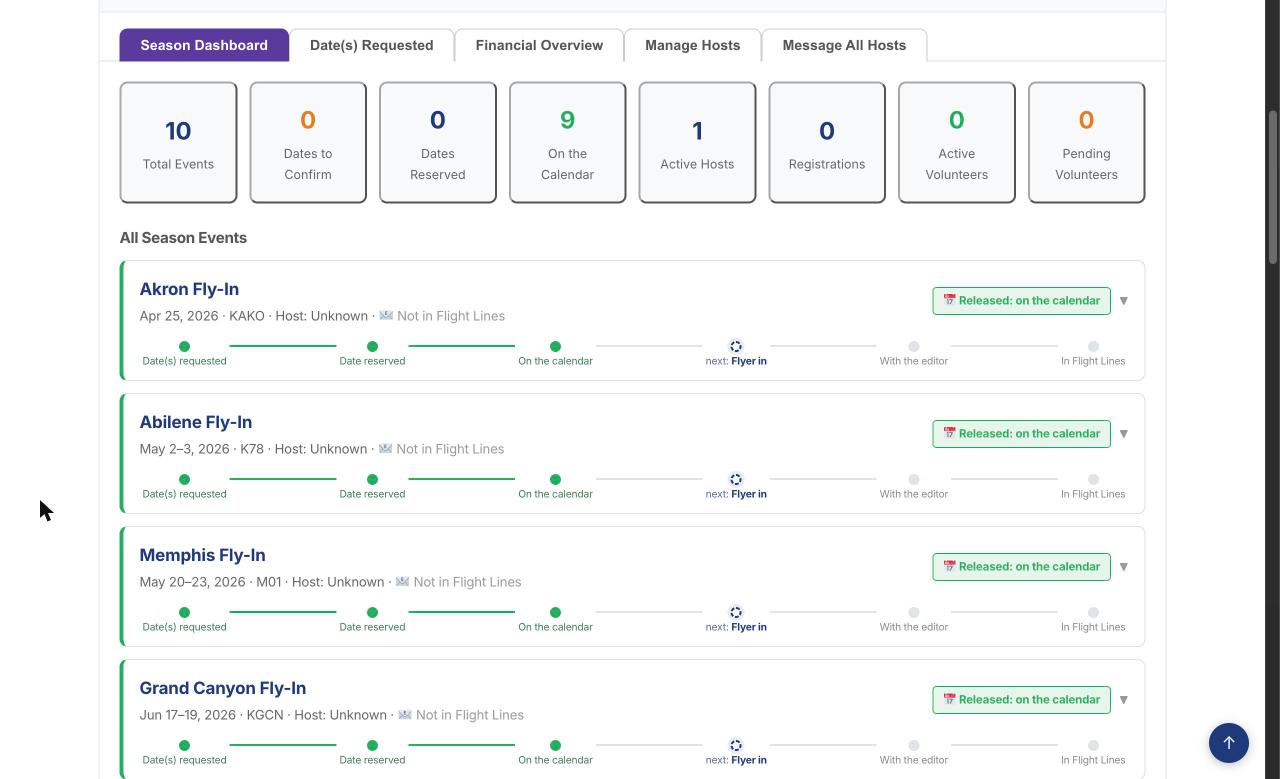
The Fly-In Chair Panel opens on its first tab, Season Dashboard. It is your view of the whole season.
The boxes across the top count the season: Total Events, Dates to Confirm, Dates Reserved, On the Calendar, Active Hosts, Registrations, and Active and Pending Volunteers. Press one to show only those fly-ins, or to open the tab it is about.
The “need your attention” box (light purple, just under the row of tabs, above the boxes) lists anything waiting on you, such as a date to confirm. It only appears when something is waiting, so no box means nothing needs you today.
All Season Events lists every fly-in with a bar showing how far it has come: Date(s) requested, Date reserved, On the calendar, Flyer in, With the editor, In Flight Lines. Under each one, Next step says what is outstanding and has a button for it.
Before the rollout meeting a fly-in shows only its dates and its host, not where it is going. Step 4 explains why.
The Season Dashboard: the count boxes and each fly-in's progress bar.
Checklist
Attention box read, if there is oneEACH VISIT
Step 3 of 12
Date(s) Requested: reserve each host's date
Planning Guide: November and December, the host tells you the date only, and the date is reserved for them.
A host does this with Create a Fly-In, which shows the season's taken days (no destinations, no hosts) and asks only for their date(s). An open date is reserved the moment the host asks for it, as you decided: "You ask, you get if it is available and it's yours." A date another fly-in already holds is refused, and the host is shown the nearest open dates. You get an email headed "Date(s) Reserved" with the dates and the host's name, and the fly-in appears on the Date(s) Requested tab. Replying to that email goes straight to the host.
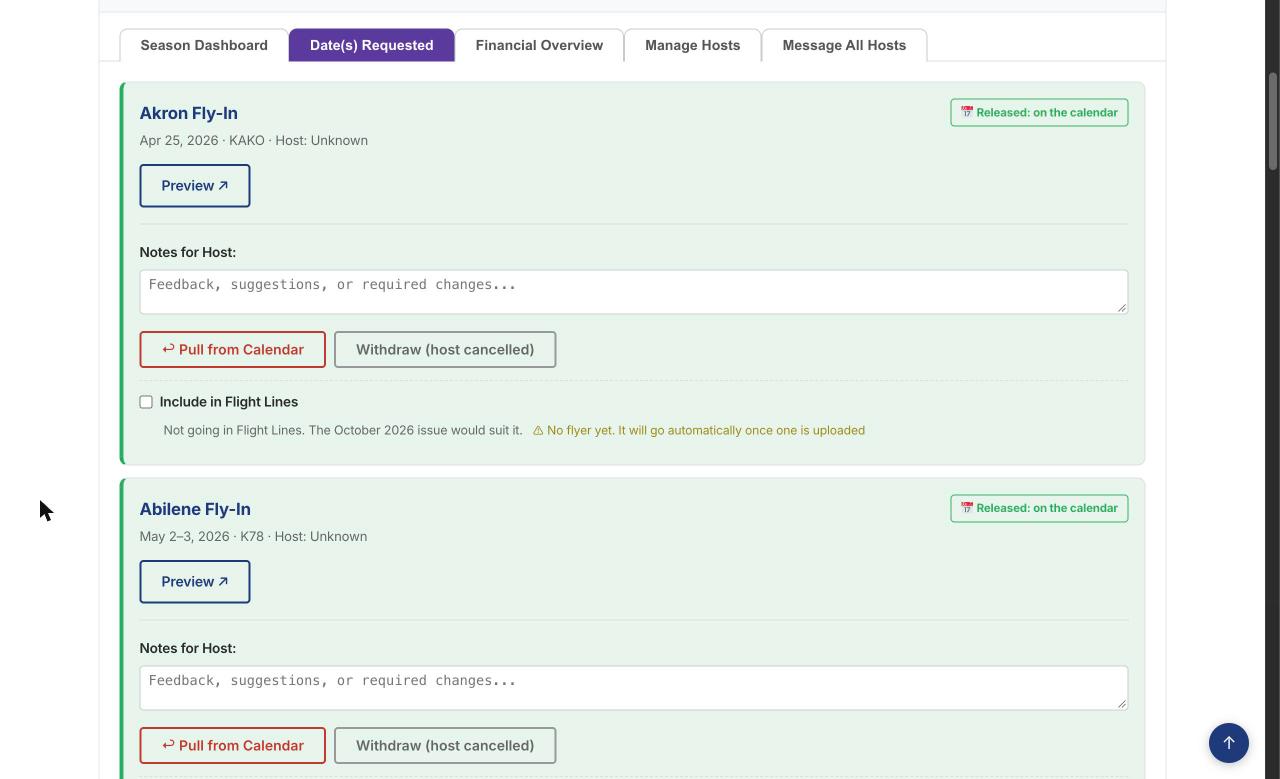
Ask the host to move it, on a reserved date, frees the date and asks the host for another, for example one too close to another trip or the annual meeting. Type a note for the host first; it goes in their email. When the host saves a new open date on their management page, it is reserved for them straight away and you get another "Date(s) Reserved" email. You also get one whenever a host moves a date that was already reserved.
Confirm Date appears only on a fly-in requested before instant reservation. The host is emailed "Date reserved". Nothing goes public.
Read the whole fly-in without leaving this page opens its page beside the buttons.
A new fly-in is called "Fly-in hosted by" and the host's name until the host names it. The host adds the name, destination and details later, on their own management page.
Occasionally a fly-in arrives through the general Submit an Event form instead. It shows in an amber box, Came in outside the Create a Fly-In form. Its Approve button puts it on the calendar at once, so use it only when you mean that.
Checklist
Each new date looked over, and any clash movedNOV / DEC
Step 4 of 12
The rollout meeting: release the season
Planning Guide: January, the destination is revealed at the rollout meeting, and then the event goes on the CPA calendar.
Rollout meeting date, on the Date(s) Requested tab: enter the meeting date. Until that day the dashboard and your emails show each fly-in's dates and host only, so you are surprised with everyone else. Each held fly-in offers Show me this trip now (or, once its flyer is in, Review it now), so a Flight Lines deadline never waits on the meeting. It shows that one trip only, and only to you.
Release to Calendar puts one fly-in on the calendar and opens registration. Release everything held does the whole season at once, and Schedule all for a date lets the website do it for you that day.
Registration opens on release, with no fee needed. A fly-in with no fee yet shows its cost as to be announced. Members still sign up, and their sign-ups in the order received are the host's planning and priority list. When the host enters the fee, everyone signed up is emailed the cost.
Pull from Calendar takes a released fly-in off the calendar for now. Its date stays reserved and the host is told.
Before January 20, the Preview: the Fly-In Preview page lists every released fly-in by itself. Your kick-off note at the top is uploaded in step 9.
Checklist
Rollout meeting date enteredBEFORE JANUARY
Season released or scheduledJANUARY
Kick-off note on Fly-In PreviewBY JANUARY 20
Step 5 of 12
Flight Lines: reminder articles and flyers
Planning Guide: three months before the event, the host emails you a brief reminder article; you proofread it and send it to the Flight Lines editor. It appears in Flight Lines only, not on the website. Planning Guide: two months before the event, the host sends you the Flyer, and you see that it is published.
Reminder articles for Flight Lines appears at the top of the dashboard when one is due, with the issue and the deadline. Once the host has emailed you the article and you have proofread it, send it to the editor, then press Mark written.
Flyers: the host uploads the Flyer on their management page and is reminded three weeks before it is due. You read it, then press Approve flyer for Flight Lines or Request flyer changes with a note for the host.
Fixing a small error yourself: you can. Press Manage Event on the fly-in, open Event Details, and under Flyer upload a corrected copy; it replaces the host's. The site cannot change the words inside a PDF or Word file, so correct the file on your computer first (or ask the host for one). Let the host know, so their own copy matches. A fly-in entered by hand, rather than through Create a Fly-In, may not show you Event Details; ask the Webmaster to replace its flyer.
Include in Flight Lines and Issue choose which issue carries the Flyer. An approved Flyer goes to the editor by itself when it is due, or press Send flyer to editor now.
A released fly-in, with its Flight Lines box and flyer note.
Checklist
Reminder article sent and marked written3 MONTHS BEFORE
Flyer approved, issue chosen2 MONTHS BEFORE
Step 6 of 12
Financial Overview: the money
Planning Guide: immediately after the event, the host completes the income and expense portion of the Roster / Accounting form and sends it to the Treasurer.
Does the host fill this in by hand? No. The roster and every payment fill themselves from the registrations. The host adds only what they paid for, on their Expenses tab, with a photo of each receipt, then presses Email Financial Report to Treasurer on their Financials tab. The fly-in then shows Event Complete.
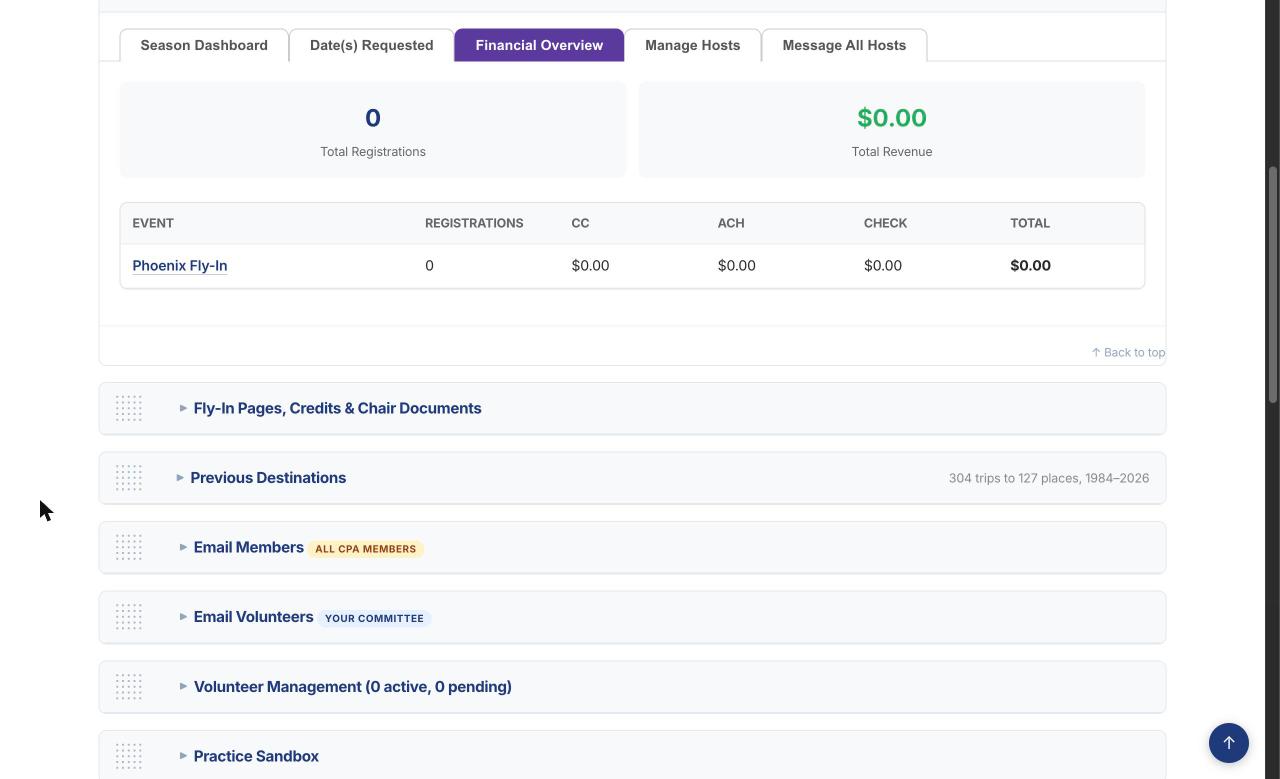
The Financial Overview tab shows the whole season:
Registrations and money in for each fly-in, by card, bank transfer (ACH) and check. A fly-in's name opens its own money summary.
Pending Checks, with Mark Received for each one.
Completed Events: Treasurer Summary, with whether the host has been reimbursed and their receipt photos.
The Financial Overview.
Checklist
Each finished fly-in shows Event CompleteAFTER EACH TRIP
Step 7 of 12
Manage Hosts and Message All Hosts
Manage Hosts lists this season's hosts and their fly-ins, with Email Host beside each.
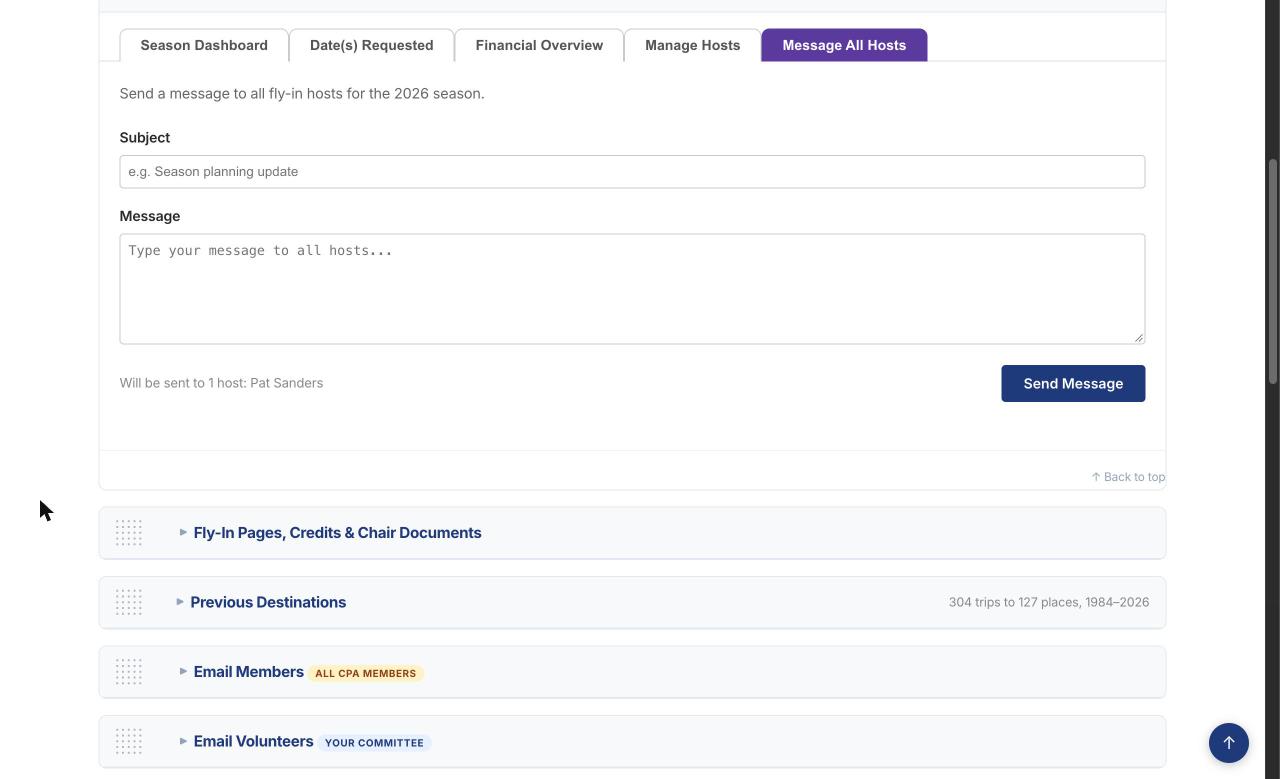
Message All Hosts sends one email to every host this season. Good for a welcome note once the hosts are announced, and a thank-you after the season.
Message All Hosts (sample host name).
Step 8 of 12
Season complete: archive the season
Planning Guide: post-event, once the last fly-in has flown and each host's Roster / Accounting form has gone to the Treasurer, the season's work is done.
When every fly-in of a season has flown, Fly-in season complete: archive the season appears at the end of that season's list on the Season Dashboard. Press it, read what it does, then press Yes, archive the season.
The fly-ins stay on the calendar, each with its own page, registrations, payments, Financial Report and photos. Nothing is deleted.
Your dashboard is cleared for next season: the archived fly-ins leave its lists, counts, reminders and Message All Hosts.
Previous Destinations gets the season's trips.
Fly-In Preview stops listing the season under Scheduled Events. Your article there stays until you upload the next one, and next season's fly-ins appear as you release them. So archive when you want the list to come down.
Undo archive, under Archived seasons at the end of the list, brings a season back.
Checklist
Season archivedAFTER THE LAST TRIP
Step 9 of 12
Practice: the sandbox and practice emails
Members can practice hosting a fly-in before they host a real one. Practice fly-ins are private, never on the calendar, and never in your Date(s) Requested list.
Practice Sandbox: a switch for trying the dashboard yourself. While it is on, every email you send comes back to you and nobody else, and a red bar says so on every page. It is one shared switch with the site admins: turn it off when you are done.
Practice Fly-In Emails: tick Email me when a member starts a practice fly-in to hear about each one. It is off unless you turn it on.
Checklist
Sandbox off after trying somethingCHECK
Step 10 of 12
Fly-In Pages, Credits and Chair Documents
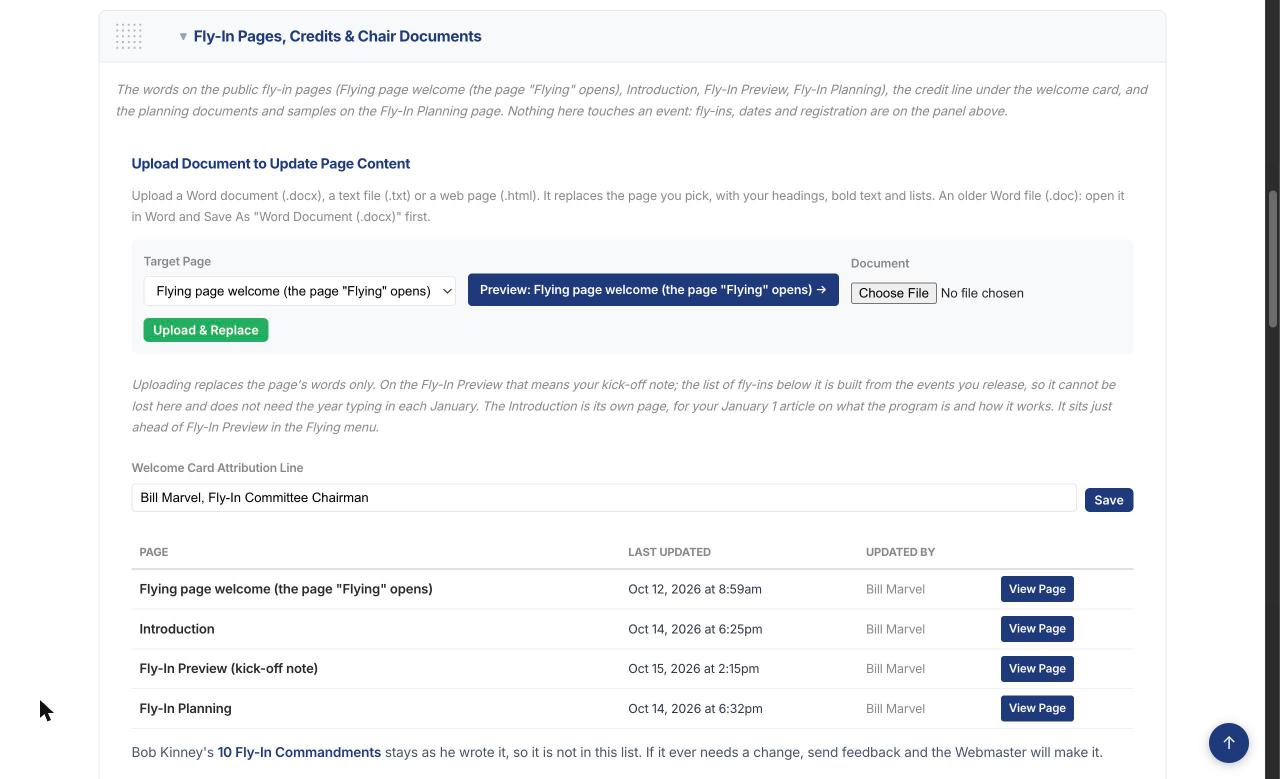
The words on the public fly-in pages, uploaded from a Word document (.docx), which keeps your headings, bold, lists, text color and size. A PDF can't be used for page text: save it as a Word document first, or add it as a planning document. Nothing here changes a fly-in.
The pages: the Flying page welcome (the card at the top of the page that opens when you click the word Flying in the menu; leave it empty and the card is not shown), the Introduction (your January 1 article on what the program is and how it works), Fly-In Preview (your kick-off note) and Fly-In Planning. Choose one, choose the file, upload, then open the page to check it.
Attribution: the credit line under the welcome card.
Planning Resources and Sample Documents: files hosts download from the Fly-In Planning page, such as your Planning Guide and past flyers.
Fly-In Pages, Credits and Chair Documents.
Step 11 of 12
Previous Destinations, Email Members and Volunteers
Previous Destinations: every trip since 1984. Been good before, and it has been a while suggests places worth going back to, for a host looking for an idea.
Email Members: sends a message to all CPA members as the Fly-In Chair.
Volunteer Management: members who offered to help with fly-ins. Approve or decline new ones; an approved volunteer can look at this dashboard but not change it.
Email Volunteers: a message to your volunteers only.
Step 12 of 12
Who can change what, and getting help
Only you and the site admins can change this dashboard. Volunteers can look at it. Hosts' email addresses, the money and Message All Hosts are yours alone.
Hosts see only their own fly-ins, on their management pages.
Stuck? Call or text Brian, or press the FEEDBACK tab on the side of any page and describe what you see; you can attach a screenshot.